
Character Galleries
Every character has a gallery of pictures on their web portal profile. The player adds images, puts them in order, and gives each one a caption, tags and, when it needs one, a content warning. One image is the character’s avatar and one can be the banner across the top of the profile.
This page covers what players do with a gallery, what staff can change, and how a game decides what happens when someone reports an image. The examples were run on a SharpMUSH server, and the output shown is what it printed.
What players do
Section titled “What players do”The profile’s Gallery card shows the avatar and two more images. View all opens the gallery page,
at /character/<name>/gallery, with every image in the player’s order. Clicking an image opens it
large, with its caption and tags under it.
Whoever may edit the character’s biography may edit the gallery: the account that owns the character, and staff who control it. In the large view they can:
- move the image earlier or later in the gallery;
- make it the avatar or the banner;
- edit its caption, tags and content warning;
- share it in the image library;
- delete it.
Add image under the Gallery card, and Change avatar and Change banner on the profile, each offer two ways in: upload a new file, or choose one from the image library.
The portal takes PNG, JPEG, GIF and WebP files up to 10 MB. It reads the start of each file to check
what it is, so a file renamed to .png is refused.
Content warnings
Section titled “Content warnings”A content warning is a few words, such as blood or spiders. A warned image is covered by its
warning everywhere the portal shows it: on the profile, on the gallery page and in the large view. The
picture is not even downloaded until the viewer chooses Show image.
Because the avatar and the banner show without a click, a warned image is never either of them. Warning the current avatar moves the avatar to the first image without a warning.
Tags are short words or phrases, up to ten per image, such as portrait, docks or night. The
portal stores them in lower case. The gallery page shows one button per tag; choosing one keeps only
the images that carry it. Moving an image while a tag is chosen moves it past its neighbour among the
images shown.
The image library
Section titled “The image library”The image library holds the pictures a game has already stored, so a map on the wiki or a picture in one gallery can be used again without uploading the same file twice. Anyone signed in to the portal can choose from it:
- in the wiki editor, with the image button in the toolbar, which inserts the picture into the page;
- in Add image, Change avatar and Change banner, which add it to the gallery without making a copy.
The library has a search box that narrows it by file name. A gallery takes only PNG, JPEG, GIF and WebP, so drawings in SVG appear only in the wiki editor.
What is in it
Section titled “What is in it”A file uploaded in the wiki editor or on the staff Image Library page (/admin/media) is in the
library straight away.
A file uploaded to a gallery belongs to that gallery until the player shares it: Edit details has Share in the image library. Until then nobody else finds it in the library, and deleting it from the gallery deletes the file. Sharing cannot be undone, because a wiki page or another gallery may already show the picture; once shared, deleting it from the gallery keeps the file, and the form says so.
An image with a content warning cannot be shared. The warning belongs to the gallery, and the library would show the picture uncovered.
A file can be locked to a permission, such as wiki.admin or one the game defined with
@permission. Only holders of that permission find it in the
library; its uploader and anyone with media.admin always do, and see a lock beside its name.
Staff set a lock on the Image Library page: the lock button on a file opens Library sharing,
with Lock to a permission. Leaving the field empty takes the lock off. The Library column shows
One gallery, Everyone or Locked: and the permission.
Limits
Section titled “Limits”| What | Limit |
|---|---|
| Images in one gallery | max_gallery_images, 50 unless the game changes it |
| Caption | 300 characters |
| Content warning | 100 characters |
| Tags | 10 per image, 32 characters each |
| File | 10 MB; PNG, JPEG, GIF or WebP |
max_gallery_images is in the Players group of @config. Set it in mush.cnf
(max_gallery_images 80), or in the game:
> @config/set max_gallery_images=80Option set.> think config(max_gallery_images)80Reports
Section titled “Reports”A visitor signed in to the portal can report an image they think breaks the game’s rules. SharpMUSH keeps no reports of its own. It hands each one to the game’s event handler, and the game decides what a report does.
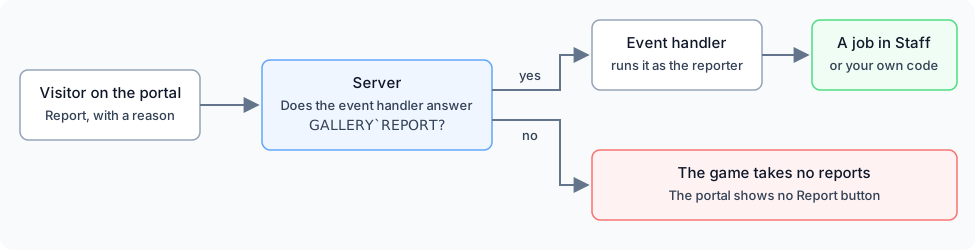
The portal shows a Report button only while the event handler answers the event: it has a
GALLERY`REPORT attribute, or a package has added one under it, such as GALLERY`REPORT`JOBS.
The event handler runs the event’s own attribute and then each one under it, so several packages can
answer one event. A game with neither takes no reports, and nobody is offered a button that does
nothing.
With the jobs package
Section titled “With the jobs package”The bundled jobs package sets GALLERY`REPORT`JOBS when it is installed. Each report becomes a job in
the Staff bucket, filed by the reporter, with the image’s address, its caption and the reason. Staff
answer it like any other job:
> +job 2...Image: /api/wiki-assets/8016be6a9711472482bddf7f9cdafe92/rail.png
Caption: At the harbour rail
Reason: Not my character
To send reports to another bucket, change DATA`GALLERY`BUCKET on the package’s Jobs object
(#15 here; use your game’s dbref):
> &DATA`GALLERY`BUCKET #15=FeedbackJobs/DATA`GALLERY`BUCKET - Set.Writing your own
Section titled “Writing your own”A game without the jobs package, or one that wants something else, sets the attribute itself. The event’s named arguments are:
| Argument | What it holds |
|---|---|
%# | The reporter’s character |
%<objid> | The character whose gallery holds the image |
%<asset> | The stored file’s id |
%<url> | The image’s address on the site |
%<reason> | What the reporter wrote |
%<caption> | The image’s caption, empty when it has none |
This tells connected wizards about every report:
> &GALLERY`REPORT #9=@wizwall/emit [name(%#)] reported an image of [name(%<objid>)]: %<reason> (%<url>)New images
Section titled “New images”The GALLERY`ADD event runs after an image is uploaded. %# is the character who uploaded it,
%<objid> the character whose gallery it is, %<asset> and %<url> the stored file, and %<use>
one of gallery, avatar or banner: what it was uploaded as.
This tells connected wizards about every new picture:
> &GALLERY`ADD #9=@wizwall/emit New picture for [name(%<objid>)]: %<url> as %<use>Event Handler/GALLERY`ADD - Set.After the next upload:
New picture for God: /api/wiki-assets/7ee8f545d88f41a8b4b3055adeec442c/lantern.png as galleryReading a gallery in softcode
Section titled “Reading a gallery in softcode”The gallery is kept as JSON in the character’s PROFILE`GALLERY attribute, one object per image in
display order. Each object has:
AssetId,FileName,Url: the stored file and its address on the site;CaptionandWarning: text, or null;Tags: a list of words, or null;Order: its place, counting from 0;IsIconandIsBanner: whether it is the avatar or the banner.
Counting the images and reading the first one’s caption:
> think json_query(get(me/PROFILE`GALLERY),size)4> think json_query(get(me/PROFILE`GALLERY),extract,$\[0\].Caption)At the harbour railThe avatar is also copied into IMAGE, the banner into IMAGE`BANNER and the avatar’s caption
into IMAGE`ALT every time the gallery changes, so code that only wants the avatar reads IMAGE.