
Layout Themes
A layout theme decides how SharpMUSH’s layouts look in a player’s MU* client: the colour of a box’s border and title, the field labels in a character sheet, the bullets in a list, the bar in a gauge. The words and the layout stay the same. Only the paint changes.
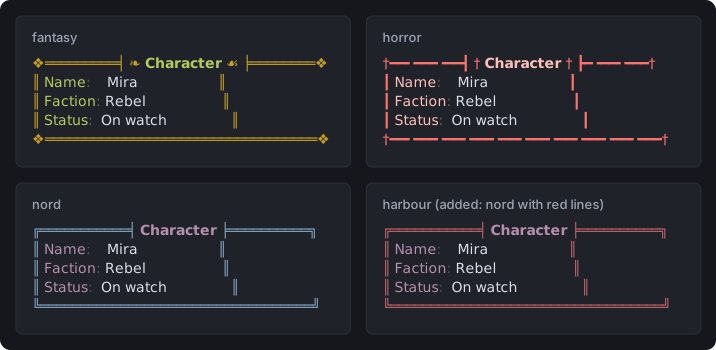
This page covers four jobs:
- choosing the game’s theme, the one everybody sees unless they pick another;
- letting players choose their own;
- adding themes of your own and turning off the built-in ones you do not want;
- giving a group of players, such as a faction, a theme of its own.
Themes apply to telnet and other MU* clients. The web portal has its own themes, which staff
manage in the portal’s admin area: see Portal Themes. Each portal theme also
exists here under the same name and colours, so @theme me=cyberpunk matches a portal set to
Cyberpunk. The portal’s own play terminal draws layouts in the portal theme chosen there, not in the
player’s @theme.
See what is available
Section titled “See what is available”@theme/list shows every theme the game knows and whether players can use it. Anyone can run it.
The built-in themes come in groups:
sharpmush, the portal’s teal on black, the game’s own look;- the web portal’s themes, under the names the portal gives them, such as
phosphor,daylight,cyberpunkandstarship-console; - a dark and a light theme for each kind of colour blindness, such as
deutan-darkanddeutan-light; terminal, which uses the sixteen standard colours each client draws in its own palette;- one for each genre a game can name in its MSSP settings:
fantasy,historical,horror,modern,mystery,romance,science-fictionandspiritual; - well-known colour schemes from code editors and terminals:
catppuccin-mocha,catppuccin-latte,dracula,gruvbox-dark,nord,solarized-dark,solarized-lightandtokyo-night.
The themes() function gives the names a player can choose, as a list softcode can use, in that order:
> think first(themes())sharpmushTo see a theme’s colours, and whether each one is easy to read against the background, use
swatch(). The second argument is the width; leave it out to fit the reader’s client:
> think swatch(nord,64)Role Sample Colour 16-colour Contrast--------------------------------------------------------------background - #2e3440 0 black -surface Sample #3b4252 8 bright black -foreground Sample #e5e9f0 7 white 10.3:1primary Sample #81a1c1 4 blue 4.6:1secondary Sample #b48ead 5 magenta 4.4:1 (needs 4.5)tertiary Sample #d08770 3 yellow 4.4:1 (needs 4.5)muted Sample #4c566a 8 bright black 1.7:1 (needs 3)success Sample #a3be8c 2 green 6.1:1warning Sample #ebcb8b 3 yellow 8.0:1error Sample #bf616a 1 red 3.1:1 (needs 4.5)info Sample #88c0d0 6 cyan 6.2:1subtle Sample #4d5668 8 bright black 1.7:1 (needs 3)link Sample #81a1c1 4 blue 4.6:1highlight Sample #434c5e 8 bright black -red Sample #bf616a 1 red 3.1:1 (needs 4.5)orange Sample #d08770 3 yellow 4.4:1 (needs 4.5)yellow Sample #ebcb8b 3 yellow 8.0:1green Sample #a3be8c 2 green 6.1:1cyan Sample #88c0d0 6 cyan 6.2:1blue Sample #81a1c1 4 blue 4.6:1purple Sample #b48ead 5 magenta 4.4:1 (needs 4.5)pink Sample #bb7793 5 magenta 3.7:1 (needs 4.5)In a client the Sample column is drawn in each colour. The 16-colour column is what a client with only the basic sixteen colours gets instead.
Choose the game’s theme
Section titled “Choose the game’s theme”The layout_theme game option is the theme everyone sees until they choose their own. A wizard
sets it with @config/set:
> @config/set layout_theme=nordOption set.> think config(layout_theme)nordUnset, layout_theme is sharpmush, the portal’s teal on black. Set it to none for no colour. The
terminal theme uses only the sixteen standard colours, so each player sees it in the colours their
own client is set to.
Players choose their own
Section titled “Players choose their own”A player sets a theme for themselves with @theme me=, and checks which one is in use with
@theme/refresh:
> @theme me=fantasyTheme set.> @theme/refreshTheme in use: fantasy@theme/light and @theme/dark make a theme for a client with a light or a dark background. A
genre theme has its colours chosen again for that background:
> @theme/light me=fantasyTheme set.> @theme/refreshTheme in use: {"preset":"fantasy","mode":"light"}A theme the game does not offer is refused, and the player keeps the one they had. @theme me=
with nothing after the = goes back to the game’s theme:
> @theme me=nosuch#-1 UNKNOWN THEME> @theme me=Theme cleared.> @theme/refreshNo theme is set, so layouts use the game's theme.Add your game’s own themes
Section titled “Add your game’s own themes”Staff with the layout.admin permission can add themes, remove the ones they added, and turn the
built-in ones off and on again. Players see every change straight away.
A theme is added with @theme/add <name>=<theme>. The easiest way to write one is to start from a
built-in theme with "preset" and change what you want. This one is nord with red borders:
> @theme/add harbour={{"preset":"nord","colors":{"primary":"#bf616a"}}}Theme harbour saved.The theme is written in JSON inside two pairs of braces. SharpMUSH removes the outer pair when it reads the command, the same as for a layout function’s options. A name is lower-case letters, digits and hyphens, and cannot be the name of a built-in theme.
Players can now choose it like any other:
> @theme me=harbourTheme set.To take a built-in theme off the list, disable it. Players who were using it go back to the game’s theme and are told why:
> @theme/disable fantasyTheme fantasy disabled.A player who tries to choose it now is told it does not exist:
> @theme me=fantasy#-1 UNKNOWN THEME@theme/enable puts it back:
> @theme/enable fantasyTheme fantasy enabled.@theme/remove harbour removes an added theme. Players without layout.admin who try any of these
are told Permission denied.
What you can change in a theme
Section titled “What you can change in a theme”| Key | What it does | Example |
|---|---|---|
"preset" | The theme to start from. | "preset":"nord" |
"colors" | Replaces single colours, by the roles swatch() lists: primary (borders, rules, gauge bars, table headings), secondary (titles and field labels), tertiary (bullets), muted (separators and tree lines), and success, warning, error and info for badges and notices, and also subtle, link, highlight, surface and the hues red to pink. | "colors":{"primary":"#bf616a"} |
"seed" | Makes a whole theme from one colour. | "seed":"#d08770" |
"base16" | Makes a theme from a base16 scheme: a list of sixteen colours, written \[ \]. | "base16":\["#1d1f21", ...\] |
"harmony" | With "seed", how the other colours are picked: monochrome, analogous (the default), complementary, split, triadic or tetradic. | "harmony":"triadic" |
"contrast" | With "seed", from 0 to 1: how much more each colour stands out than it must. | "contrast":0.5 |
"mode" | "light" or "dark": which background the colours are chosen for. | "mode":"light" |
"look" | Shapes rather than colours: "border", "title" (the pieces either side of a title), "bullet", "guide" (tree lines), "gauge", "separator" (after a field label) and "rule" (under table headings). | "look":{"bullet":"-"} |
A theme made from one colour:
> @theme/add ember={{"seed":"#d08770","harmony":"split"}}Theme ember saved.The full list of keys is in the layout themes reference.
A theme for each faction
Section titled “A theme for each faction”A player who has no theme of their own takes the one set on their parent object, then their parent’s parent, and finally the one set on the player ancestor, the object every player inherits from. So a theme set on a faction’s parent object reaches everyone in it.
-
Create an object for the faction, or use the one you already parent its members to:
> @create Rebel FactionCreated: Object #14. -
Give it a theme.
@themeworks on any object you control:> @theme Rebel Faction=horrorTheme set. -
Parent each member to it. Their theme changes at once:
> @parent *Mira=Rebel FactionParent changed.> @theme/refresh *MiraTheme in use: horror
A player who sets their own theme keeps it. When they clear it with @theme me=, they go back to
their faction’s.
One theme that decides for itself
Section titled “One theme that decides for itself”@theme keeps exactly what you type, and works it out each time it is needed, as the player it is
for. So instead of a theme you can store a little softcode that picks one. %# is the player.
This goes on the player ancestor, #4 unless your game has moved it (think config(ancestor_player)
says where it is). Players whose FACTION is Rebel get horror, those in the Crown get nord, and
everyone else gets the game’s theme:
> @theme #4=[switch(get(%#/FACTION),Rebel,horror,Crown,nord)]Theme set.> &FACTION *Tobin=CrownTobin/FACTION - Set.> @theme/refresh *TobinTheme in use: nordThe theme is worked out when the player connects, when someone runs @theme on them or on an
object they inherit from, and when someone runs @theme/refresh <player>. Setting FACTION does
not by itself change the theme a connected player sees, so code that changes it should run
@theme/refresh %# afterwards. Here is a +join command that sets a player’s faction and their
theme in one go. It sets an attribute on the player, so its object needs to control the players who
use it; this one has the WIZARD flag. A new object ignores $-commands until NO_COMMAND is
cleared:
> @create Faction DeskCreated: Object #20.> @set Faction Desk=WIZARDFaction Desk - WIZARD set.> @set Faction Desk=!NO_COMMANDFaction Desk - NO_COMMAND reset.> &CMD`JOIN Faction Desk=$+join *:&FACTION %#=%0; @theme/refresh %#Faction Desk/CMD`JOIN - Set.> drop Faction DeskYou drop Faction Desk.When a player in the same room types +join Rebel, the next layout they read is in horror:
> +join Rebel> @theme/refreshTheme in use: horrorWhen something goes wrong
Section titled “When something goes wrong”| What you see | What it means |
|---|---|
#-1 UNKNOWN THEME | The name is misspelled, or the theme was disabled or removed. @theme/list shows what there is. |
#-1 INVALID THEME: ... | The JSON is not right. The rest of the message says which part. |
Permission denied. | Adding, removing, disabling and enabling themes needs layout.admin. Setting a theme on an object needs control of it. |
| The theme set but nothing changed | The player may have a theme of their own, which beats a parent’s. @theme/refresh <player> says which one is in use. |
| JSON with a list stopped working | A [ in the theme ran as code. Write lists as \[ \]. |
When a player connects with a theme that no longer works, for example one that was removed, they see the game’s theme and are told why.
Reference
Section titled “Reference”- @theme: light and dark, parents, code in a theme, which theme wins, and examples.
- @theme/list: adding, removing, disabling and enabling themes.
- Layout themes: every key a theme can have.
- Visual Layouts and Images: the layout functions themes apply to.