
Notifications
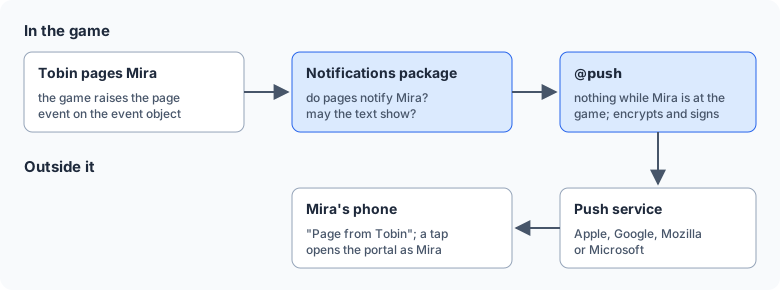
A notification tells your phone or computer that something happened in the game while you were
away, the same way a chat app does. With the bundled notifications package, a page or new @mail
sends one. Tapping it opens the portal as the character it was for.
| You are | You want to | Read |
|---|---|---|
| A player | get notifications on a phone or computer | Turning notifications on |
| A player | choose what notifies you | Choosing what notifies you |
| Staff | set it up for the game | Running notifications |
| A package author | notify players from your own code | Sending notifications from softcode |
Turning notifications on
Section titled “Turning notifications on”Notifications are turned on for each phone or computer, in the portal:
- Sign in to the portal and open Settings, then Notifications.
- Choose Turn on. The browser asks whether the site may show notifications; allow it.
- Choose Send a test. A notification saying “Notifications are on for this device.” should arrive within a few seconds.
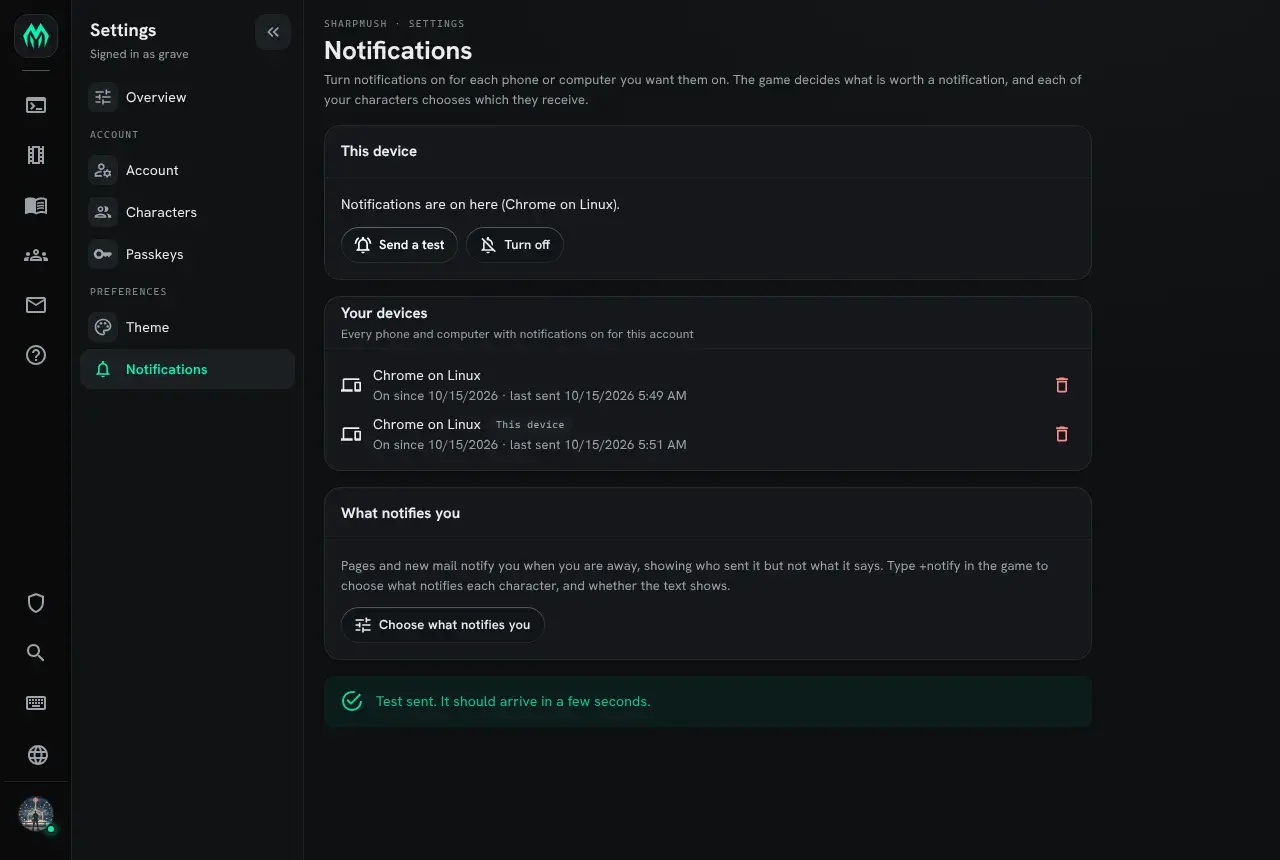
Your devices on the same page lists every phone and computer with notifications on for your account, when each was last sent one, and any that failed. Remove one there, or choose Turn off on the device itself.
Notifications belong to your account, so one device gets them for every character on it. Each notification says which character it is for, and opening it switches the portal to that character.
iPhone and iPad
Section titled “iPhone and iPad”On an iPhone or iPad, a website can only show notifications once it is on the home screen:
- Open the portal in Safari.
- Tap Share, then Add to Home Screen.
- Open the portal from the new icon, then follow the steps above.
When you are notified
Section titled “When you are notified”You are notified only while you are away. Nothing is sent while you have typed something in the
game in the last five minutes, or while a portal tab of yours is open in front of you. The game
decides how long counts as away; push_idle_seconds is five minutes unless your staff changed it.
Choosing what notifies you
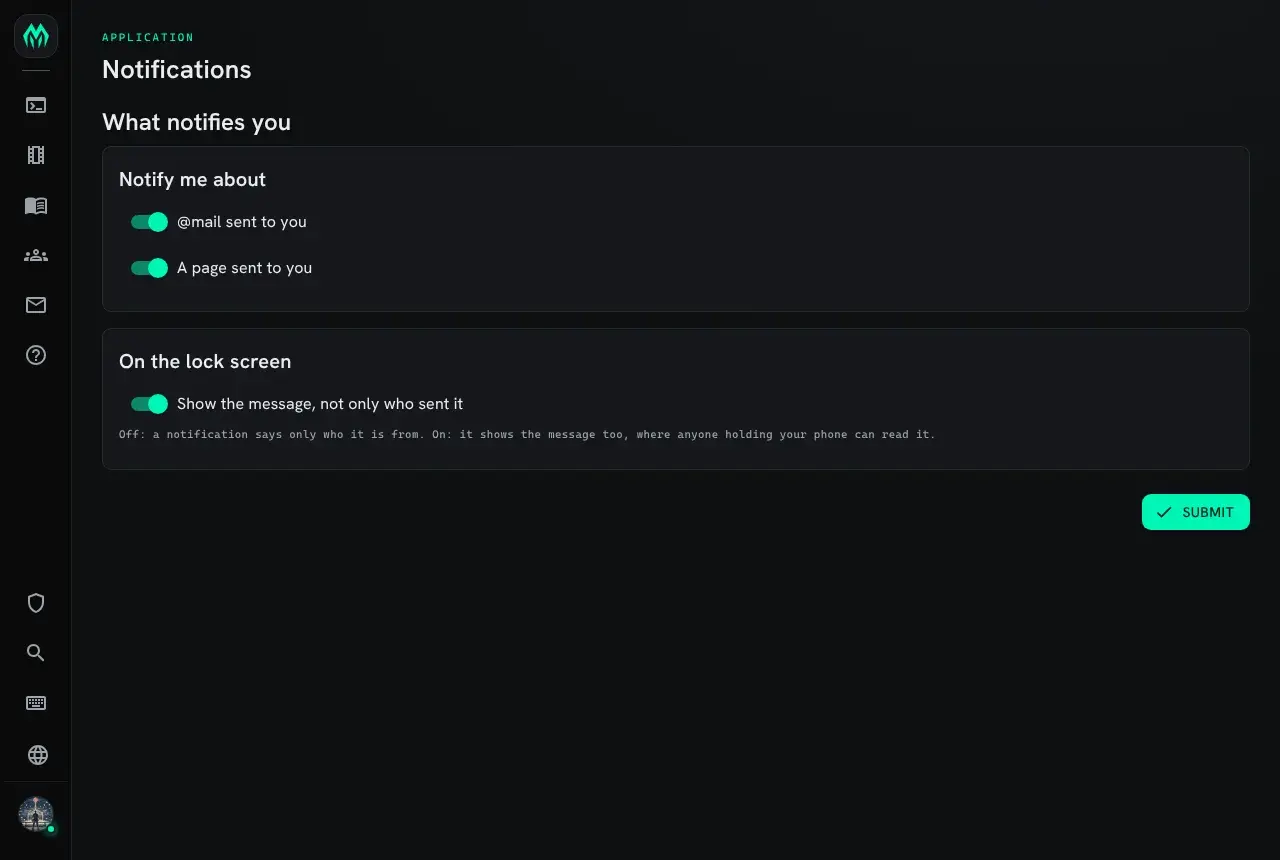
Section titled “Choosing what notifies you”Each character chooses for itself. +notify lists the choices:
> +notify╔══════════════════════════════╡ Notifications ╞═════════════════════════════╗║ Setting On What it covers ║║ ---------------------------------------------------- ║║ mail on @mail sent to you ║║ page on A page sent to you ║║ preview off Show the message, not only who sent it ║╠════════════════════════════════════════════════════════════════════════════╣║ +notify <setting>=on or off changes one. Turn notifications on for a phone ║║ or browser in the portal: Settings, Notifications. ║╚════════════════════════════════════════════════════════════════════════════╝+notify <setting>=on or off changes one:
> +notify mail=off[NOTIFY] Done: mail is off: @mail sent to you.> +notify preview=on[NOTIFY] Done: preview is on: Show the message, not only who sent it.preview starts off. With it off, a locked phone shows only who wrote to you, such as “Page from Tobin”, never what they said. Turn it on to see the page itself, or the subject of the mail.
The portal has the same choices as switches: on Settings, Notifications, choose Choose what notifies you.
Running notifications
Section titled “Running notifications”Installing
Section titled “Installing”The notifications packages ship with the server but are not installed on a new game. An administrator installs them from the portal:
- Open Packages in the admin area and choose Browse.
- Install
notifications. It gives+notifyand sends a notification for pages and new mail. It needshttp-handlerandplus-help, which a new game already has, and an event handler, since it hears pages and mail as events. - Install
notifications-appfor the portal page where players choose what notifies them. It opens from Settings, Notifications.
Players can turn notifications on for their devices without the packages, but nothing sends one
until something runs @push.
What the server needs
Section titled “What the server needs”- Outgoing HTTPS to the browsers’ push services:
fcm.googleapis.com(Chrome),updates.push.services.mozilla.com(Firefox),*.push.apple.com(Safari) and*.notify.windows.com(Edge on Windows). The server refuses a device that names any other host.WebPush__AdditionalHosts__0adds one, for a browser that uses a push service of its own. - A contact address. Every notification carries one, so a push service can reach whoever runs
the game. The server uses
mud_urlwhen it is anhttpsaddress. SetWebPush__Subjectto amailto:orhttps:address to use a different one. Without either, the server logs a warning, and some push services refuse the notifications. - HTTPS for the portal. Browsers allow notifications only on a site served over HTTPS (or on
localhost).
The signing key
Section titled “The signing key”The server signs every notification with a key it makes the first time it needs one. It keeps the
key as the secret push.vapid in the secret store, so it is in every backup:
> @secret...│ push.vapid stored 2026-10-15 04:50 by The key web push ││ SharpMUSH(#1) notifications are ││ signed with. Made on ││ first use; clearing it ││ makes a new one, and ││ every browser has to ││ turn notifications on ││ again. │...@secret/clear push.vapid replaces it. The server makes a new key the next time it needs one, and
every device has to turn notifications on again: Your devices marks the old ones.
Limits
Section titled “Limits”push_idle_seconds(300) is how long a player goes without typing before they count as away.push_limit(10) is how many notifications one character is sent in a minute. Past it, the rest are dropped.push_devices(10) is how many phones and computers one account may turn notifications on in. Each@pushsends one request per device. When an account is full, Turn on asks the player to remove one under Your devices first. A device the push service no longer knows is removed by itself.
@config limit lists all three, and @config/set changes them.
Sending notifications from softcode
Section titled “Sending notifications from softcode”@push <player>=<title>,<text>,<path>,<topic> sends a notification to every device the player’s
account turned notifications on in. Only the title is required.
<path>is the portal page a tap opens, such as/mailor/play.- A later notification with the same
<topic>for the same character replaces the earlier one, so ten pages from one person show as one. @pushsends nothing while the player is at the game;/alwayssends anyway./urgentasks the push service to wake a device that is saving power.
It needs the notify.push permission, which the wizard role allows. Its output is one word, read
with %>:
> &SEND me=@push Mira=Page from Tobin,,/play,page-tobin; think %>> @include me/SENDsent> &SEND me=@push Tobin=Your scene starts soon; think %>> @include me/SENDnonenone means the player has no device with notifications on, attended that they are at the game,
and limited that they passed push_limit. help @push has the details.
Adding a kind of notification
Section titled “Adding a kind of notification”@push sends whatever it is told, so a package that wants to notify players about something else
should go through the notifications package instead. Then each player can turn it off with
+notify, and the text stays hidden until they turn preview on.
A kind is two attributes on the Notifications object in the master room: what it covers, and
whether it is on until a player turns it off. This adds one for replies to +jobs:
> &DATA`KIND`JOB #15=A reply to one of your +jobsNotifications/DATA`KIND`JOB - Set.> &DATA`KIND`JOB`DEFAULT #15=1Notifications/DATA`KIND`JOB`DEFAULT - Set.> +notify╔══════════════════════════════╡ Notifications ╞═════════════════════════════╗║ Setting On What it covers ║║ ---------------------------------------------------- ║║ job on A reply to one of your +jobs ║║ mail on @mail sent to you ║║ page on A page sent to you ║║ preview off Show the message, not only who sent it ║╠════════════════════════════════════════════════════════════════════════════╣║ +notify <setting>=on or off changes one. Turn notifications on for a phone ║║ or browser in the portal: Settings, Notifications. ║╚════════════════════════════════════════════════════════════════════════════╝The new kind also shows on the portal page. #15 is the Notifications object in this game;
@find Notifications shows yours.
To send one, trigger APISENDon that object, from an object that controls it, such as the event handler or a wizard's global, naming each value. Here%#` is the player who ran the command:
@trigger/args #15/API`SEND=to,%#,kind,JOB,title,Job 12 has a reply,text,Staff answered your request.,path,/play,topic,job-12| Name | What it is |
|---|---|
to | The player, as a dbref or objid |
kind | The kind, as named in DATAKIND<NAME> |
title | The notification’s title |
text | Its text, shown only when the player turned preview on |
path | The portal page a tap opens |
topic | Replaces an earlier notification with the same topic |
urgent | 1 to wake a device that is saving power |
It sends nothing when the player turned that kind off, and the player’s device shows only the title until they turn preview on.