
Launch a Server
This page takes you from nothing to a public game with a web portal and telnet, on a server you rent by the month. You fill in a short form, or paste one block of text, and an installer does the rest: it installs Docker, starts SharpMUSH, gets an HTTPS certificate, and keeps the game locked to you until you have claimed the admin account.
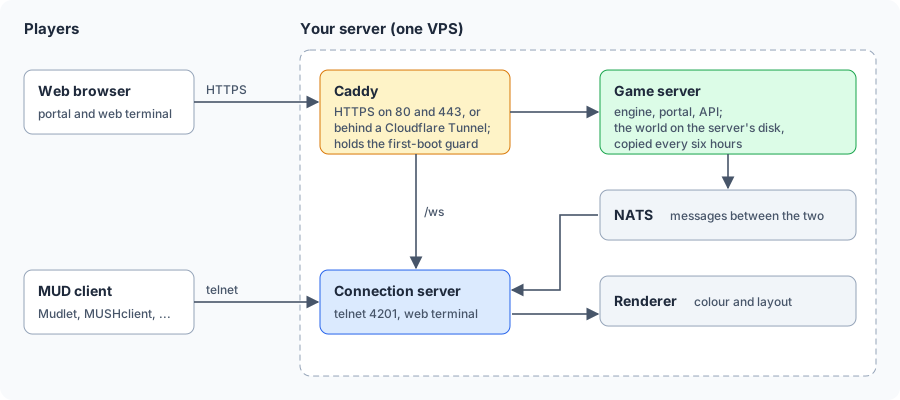
Pick a host
Section titled “Pick a host”The first choice is who runs updates.
- It updates itself (a VPS). The installer sets the game server and the renderer to update on their own a few minutes after each new version, and players stay connected through it. You update only the connection server, which holds every player’s connection, when you choose to drop everyone. You also get TLS telnet on port 4203 and the whole server for the game.
- You own the updates (Fly.io, Railway). Nothing changes until you update it, so the game stays on the version you tested. Updating the game server or the renderer keeps players connected; updating the edge, which holds their connections, drops everyone. These are the quickest to put up: one command or one button, and no server to look after.
| Host | Updates | How you launch | Rough monthly cost |
|---|---|---|---|
| Oracle Cloud | itself | Paste the setup text, on an ARM server in the free tier | free, within Oracle’s Always Free limits |
| Hetzner | itself | Paste the setup text into Cloud config | from €6.49 before VAT |
| Vultr | itself | Paste the setup text into the user data box | $10 for 2 GB, $20 for 4 GB |
| DigitalOcean | itself | Paste the setup text into the user data box | $12 for 2 GB, $24 for 4 GB |
| Akamai / Linode | itself | Fill in the SharpMUSH StackScript form | $12 for 2 GB, $24 for 4 GB |
| Other VPS providers (Scaleway, OVHcloud, AWS Lightsail, …) | itself | Paste the setup text into the user data box | about $12 for 2 GB, $24 for 4 GB |
| Fly.io | you | Run one command from your computer | about $20 for three small machines and their storage, or $11 run as one; $2 more for an IPv4 telnet address if you add one |
| Railway | you | Press the Deploy on Railway button | billed by use on top of Railway’s $5 Hobby plan; see railway.com/pricing |
Prices change; check the host’s own page before you pick.
Every host needs a server with at least 2 GB of memory; 4 GB is comfortable. Choose Ubuntu 24.04 (or later) or Debian 12 when the host asks for an operating system. Intel, AMD and ARM servers all work.
What we suggest:
- To try SharpMUSH for nothing: Oracle Cloud’s free tier, if it has room when you ask.
- For a game that looks after itself, cheaply: Hetzner or Vultr.
- For a form to fill in rather than text to paste: Akamai / Linode.
- To be playing in minutes and choose each update yourself: Railway or Fly.io.
See Update your game for how each one updates.
Decide on an address
Section titled “Decide on an address”The installer needs to know what address your portal will have. You have three choices.
- No domain. Leave the domain empty and the game starts at
<your-server-ip>.sslip.io, which works with no DNS set up at all. It is the quickest way to try things, but the certificate service limits how many sslip.io certificates it issues each week across everyone using it, so it can fail at busy times. Move to your own domain once you have one. - Your own domain. For example
mush.example.com. Before you launch, add an A record for it pointing at the server’s IP address. On most hosts you only learn the address once the server exists, so either reserve an address first or add the record straight after creating the server. The certificate arrives as soon as the record does. - A domain on Cloudflare. Give the installer a Cloudflare API token and it sets everything up:
a tunnel for the portal, so your server opens no web ports, and a
telnet.<your-domain>record for MUD clients. See Make a Cloudflare API token.
Launch on any VPS
Section titled “Launch on any VPS”-
Start creating a server with your host. Pick Ubuntu 24.04 and a plan with 2 GB of memory or more.
-
Find the field for user data. Hosts give it different names: look for user data, cloud-init, cloud config or initialization script, often under advanced options.
-
Paste this text into it, and fill in the lines you want. Every line may stay empty.
#cloud-configwrite_files:- path: /root/sharpmush-answers.envpermissions: "0600"content: |# The portal's domain, e.g. mush.example.com. Empty: the game starts on <ip>.sslip.io.SHARPMUSH_DOMAIN=# Optional, with a domain on Cloudflare: sets up the tunnel and DNS for you.CLOUDFLARE_API_TOKEN=# Optional: an existing tunnel's token instead (point its hostname at http://caddy:80).CLOUDFLARE_TUNNEL_TOKEN=SHARPMUSH_SOURCE_REF=mainruncmd:- - bash- -c- |set -euo pipefailset -a; . /root/sharpmush-answers.env; set +acurl -fsSL "https://raw.githubusercontent.com/SharpMUSH/SharpMUSH/${SHARPMUSH_SOURCE_REF:-main}/deploy/oneclick/install.sh" -o /root/sharpmush-install.shbash /root/sharpmush-install.sh 2>&1 | tee /var/log/sharpmush-install.logshred -u /root/sharpmush-answers.env /root/sharpmush-install.sh -
If the host puts a firewall in front of the server, open TCP ports 80, 443, 4201 and 4203 in it (and UDP 443, for faster HTTPS). See Where to paste it.
-
Create the server and wait three to five minutes while it installs.
-
Log in over SSH (
ssh root@<your-server-ip>). The welcome message shows your game’s addresses and your setup link. Carry on with Finish setup.
Where to paste it
Section titled “Where to paste it”| Host | Where the setup text goes | Firewall |
|---|---|---|
| DigitalOcean | Advanced options → Add initialization scripts | none unless you add a Cloud Firewall |
| Hetzner | Cloud config | none unless you add a Firewall |
| Vultr | Additional features → Cloud-Init User-Data | none unless you add a firewall group |
| Scaleway | Advanced settings → Cloud-init | the default security group lets everything in |
| OVHcloud Public Cloud | Post-installation script | none by default |
| AWS Lightsail | Add launch script, as the shell form below | open 443, 4201 and 4203 on the instance’s Networking tab; 22 and 80 are open already |
| Oracle Cloud | see Launch free on Oracle Cloud | the network’s security list |
Lightsail runs its launch script as shell commands, so it takes the same answers in this form:
#!/bin/bashexport SHARPMUSH_DOMAIN= CLOUDFLARE_API_TOKEN= CLOUDFLARE_TUNNEL_TOKEN=curl -fsSL https://raw.githubusercontent.com/SharpMUSH/SharpMUSH/main/deploy/oneclick/install.sh \ | bash 2>&1 | tee /var/log/sharpmush-install.logA host with no user data box at all, such as OVHcloud’s VPS range, takes the installer over SSH instead, as in the note below.
Launch free on Oracle Cloud
Section titled “Launch free on Oracle Cloud”Oracle’s Always Free tier includes ARM servers with up to 4 cores and 24 GB of memory between them, which is plenty for a game.
-
In Oracle Cloud’s console, open Compute → Instances → Create instance.
-
Under Image and shape, choose Canonical Ubuntu 24.04 and the VM.Standard.A1.Flex shape with 2 OCPUs and 12 GB of memory (or up to 4 and 24). It is marked Always Free-eligible.
-
Under Advanced options → Management, choose Paste cloud-init script and paste the setup text from Launch on any VPS, with your answers filled in.
-
Create the instance and note its public IP address.
-
Open the game’s ports. From the instance’s page, follow its subnet to the Default Security List and add ingress rules from
0.0.0.0/0for TCP ports 80, 443, 4201 and 4203, and UDP 443. -
After five minutes, log in with
ssh ubuntu@<your-server-ip>and runsudo -i. The welcome message has your setup link. Carry on with Finish setup.
Launch on Akamai / Linode
Section titled “Launch on Akamai / Linode”-
In Linode’s Cloud Manager, open StackScripts, then Create StackScript. Name it SharpMUSH, tick Ubuntu 24.04 and Debian 12 as target images, and paste this script:
#!/bin/bash# <UDF name="SHARPMUSH_DOMAIN" label="Domain for the web portal" example="mush.example.com. Leave empty to start on <ip>.sslip.io." default="" /># <UDF name="CLOUDFLARE_API_TOKEN" label="Cloudflare API token (optional)" default="" /># <UDF name="CLOUDFLARE_TUNNEL_TOKEN" label="Existing Cloudflare tunnel token (optional)" default="" /># <UDF name="SHARPMUSH_SOURCE_REF" label="SharpMUSH installer version (git ref)" default="main" />set -euo pipefailexec > >(tee -a /var/log/stackscript.log) 2>&1export SHARPMUSH_DOMAIN CLOUDFLARE_API_TOKEN CLOUDFLARE_TUNNEL_TOKEN SHARPMUSH_SOURCE_REFcurl -fsSL "https://raw.githubusercontent.com/SharpMUSH/SharpMUSH/${SHARPMUSH_SOURCE_REF:-main}/deploy/oneclick/install.sh" \-o /root/sharpmush-install.shbash /root/sharpmush-install.shrm -f /root/sharpmush-install.sh -
Save it and choose Deploy New Linode. The form now has a field for each line above: fill in the ones you want.
-
Pick a region, a Shared CPU plan with 4 GB (2 GB works), a root password, and create the Linode.
-
After three to five minutes, log in over SSH. The welcome message has your setup link. Carry on with Finish setup. If it is not there yet, the install is still running:
tail -f /var/log/stackscript.logshows how far it has got.
Launch on Fly.io
Section titled “Launch on Fly.io”You need a Fly.io account and flyctl on your own computer. Fly runs SharpMUSH’s ready-built images, so there is nothing to download or build.
The game runs as three Fly apps on a private network of their own:
| App | Runs | Public |
|---|---|---|
my-game | the edge: the web front, the message bus and every player’s connection | portal, telnet |
my-game-server | the game server, with the world on its volume | no |
my-game-renderer | the renderer, which formats output for each client | no |
Split this way, updating the game server or the renderer drops nobody.
-
Sign in.
Terminal window fly auth login -
Make a folder for the game’s settings and launch from it. Pick an app name (it becomes
<name>.fly.dev) and a region near your players.Terminal window mkdir my-game && cd my-gamecurl -fsSL https://raw.githubusercontent.com/SharpMUSH/SharpMUSH/main/deploy/fly/launch.sh | bash -s -- my-game iadOn Windows, in PowerShell:
Terminal window mkdir my-game; cd my-game& ([scriptblock]::Create((irm https://raw.githubusercontent.com/SharpMUSH/SharpMUSH/main/deploy/fly/launch.ps1))) my-game iadThis saves each app’s settings beside you as
my-game.edge.fly.toml,my-game.server.fly.tomlandmy-game.renderer.fly.toml. It creates the three apps, a 4 GB volume for the edge, a 10 GB volume for the world and two free addresses for the edge, IPv6 and a shared IPv4. Then it starts the edge, the server and the renderer, in that order. Keep the folder: you update the game from it. -
Find your setup link in the log, and carry on with Finish setup.
Terminal window fly logs --app my-game --no-tail | grep setup_codeIn PowerShell, use
Select-String setup_codein place ofgrep setup_code.Players connect their MUD clients to
my-game.fly.dev, port 4201.
To use your own domain on Fly, run fly certs add mush.example.com --app my-game, add the DNS records
it asks for, set SHARPMUSH_DOMAIN in my-game.edge.fly.toml, and deploy the edge again:
fly deploy --app my-game --config my-game.edge.fly.toml. That drops everyone connected.
To run the whole game as one app, add --single (-Single in PowerShell) the first time you
launch. It costs about half as much, roughly $11 a month in place of $20, but every update drops
everyone connected. Its settings are in my-game.fly.toml. A game keeps the layout it was launched
with; moving it to the other means launching a new game and restoring an @backup copy there.
Launch on Railway
Section titled “Launch on Railway”Railway runs the same ready-built images as Fly, as three services in one project: edge,
server and renderer. You need a Railway account on the Hobby plan or above.

-
Press Deploy on Railway and sign in. Railway shows the three services with their settings filled in. Deploy them as they are.
-
The edge’s deploy log shows your setup link and the telnet address Railway picked for you, such as
shortline.proxy.rlwy.netport31457. Carry on with Finish setup.
Set it up by hand
Section titled “Set it up by hand”To build the same project yourself, or to see what the button sets up:
-
Create a project. Add three services with Create → Docker Image, and name them:
Service Image edgesharpmush/sharpmush-edge:devserversharpmush/sharpmush-server:devrenderersharpmush/sharpmush-renderer:devThe names matter: the variables below use them to find each other.
-
Give each service its Variables:
Service Variable Value edgePORT8000SHARPMUSH_TRUSTED_PROXIES0.0.0.0/0 ::/0SHARPMUSH_SERVER_ADDRESS${{server.RAILWAY_PRIVATE_DOMAIN}}:8080Rendering__Addresshttp://${{renderer.RAILWAY_PRIVATE_DOMAIN}}:5100serverNATS_URLnats://${{edge.RAILWAY_PRIVATE_DOMAIN}}:4222ForwardedHeaders__KnownNetworks__00.0.0.0/0ForwardedHeaders__KnownNetworks__1::/0SHARPMUSH_LIGHTNING_PATH/data/lightningSHARPMUSH_LIGHTNING_SYNCperiodicSHARPMUSH_BACKUP_PATH/data/backupSHARPMUSH_BACKUP_INTERVAL6hSHARPMUSH_BACKUP_KEEP2Wiki__AssetRoot/data/wiki-assetsrendererRendering__Addresshttp://${{RAILWAY_PRIVATE_DOMAIN}}:5100Type the
${{...}}values as they are: Railway fills in each service’s private address.SHARPMUSH_TRUSTED_PROXIESlets the game believe Railway’s front door about who is visiting. Nothing but that front door can reach the edge’s web port, so it trusts only Railway. The server’sKnownNetworksdo the same for the edge, the only thing that can reach the server. The server’s other variables keep the world, its backups and wiki uploads on its volume. -
Add two volumes: right-click an empty spot on the project canvas, or press Ctrl+K (⌘K on a Mac) and search for “volume”. Attach one to
edgeand one toserver, both mounted at/data. The world lives on the server’s. -
In the
edgeservice’s Settings, under Networking: generate a domain on port8000for the portal, and add a TCP Proxy on port4201for telnet. Leave the healthcheck path under Deploy empty: the edge answers it from the server, which cannot start until the edge is up. Giveserverandrendererno public networking. On all three, leave automatic image updates off. -
Deploy. The edge’s deploy log shows your setup link and the telnet address Railway picked for you, such as
shortline.proxy.rlwy.netport31457. Carry on with Finish setup.
Finish setup
Section titled “Finish setup”Until you finish this step, your game is locked: the portal answers only a browser that has opened your setup link, and telnet answers only on the server itself. Anyone else who finds the address sees a short page saying the server is waiting for its owner.
-
Open the setup link from the welcome message (or the edge’s log on Fly or Railway). It looks like
https://mush.example.com/?setup_code=4f1c..., and takes you to the setup page. -
Choose the administrator’s name and password. This account is linked to God (
#1). -
Work through the rest of the setup wizard: import an existing database if you have one, then pick the packages you want.
Within 15 seconds of the admin account being claimed, the lock lifts: the portal opens to everyone and telnet starts answering on port 4201. Give players the portal address and, for MUD clients, the telnet address from the welcome message.
Encrypted telnet
Section titled “Encrypted telnet”Plain telnet on port 4201 sends everything as typed, passwords included. Players have two ways to keep their connection private:
- The portal’s web terminal. It runs over HTTPS on every host.
- A MUD client with TLS (also called SSL) turned on, connecting to port 4203. This needs a
server you set up with the installer. The welcome message shows the address as
TLS telnet.
| How you launched | TLS telnet address |
|---|---|
| A VPS with Let’s Encrypt | your domain, port 4203 (or your <ip>.sslip.io address) |
| A VPS behind a Cloudflare Tunnel, set up with an API token | telnet.<your-domain>, port 4203 |
| A VPS behind a tunnel you made yourself | none; port 4203 refuses connections |
| Fly.io or Railway | none yet; use the web terminal |
The certificate is the one the server already gets for your portal (or, behind a tunnel, one it gets for the telnet address). It renews on its own, and a renewal disconnects nobody. Port 4201 stays open for clients that do not speak TLS.
To check it, run this from your own computer. It should print Verification: OK:
openssl s_client -connect mush.example.com:4203 -verify_hostname mush.example.com -brief </dev/nullMake a Cloudflare API token
Section titled “Make a Cloudflare API token”-
In the Cloudflare dashboard, open My Profile, then API Tokens, then Create Token, and choose Create Custom Token.
-
Give it these three permissions:
Account Cloudflare Tunnel Edit Zone DNS Edit Zone Zone Read -
Under Account Resources, choose your account. Under Zone Resources, choose Specific zone and your domain, so the token can change DNS for that domain only.
-
Create the token, copy it into the
CLOUDFLARE_API_TOKENfield, and put your domain inSHARPMUSH_DOMAIN.
The installer uses the token once and does not store it. Your host keeps a copy of what you typed into the launch form, so revoke the token in the same dashboard page once the game is up.
Change things later
Section titled “Change things later”Log in over SSH and run:
sharpmush-configureIt asks again for the domain and the Cloudflare tokens, with the current answer in brackets. Press
Enter to keep an answer, type a new one, or type none to clear it. Backups are set as in
Turn on backups. Use it to move from sslip.io to your own domain, to put the
game behind Cloudflare, or to take it out again.
The game lives in /opt/sharpmush and starts on boot.
Update your game
Section titled “Update your game”Take a backup before any update you do by hand (@backup in the game, as a wizard). A world that a
newer server has upgraded cannot be opened by an older one, so going back needs that copy.
On a VPS
Section titled “On a VPS”The game server and the renderer update themselves. A few minutes after a new version is published, they restart on it. Players stay connected: they see a restart notice, and what they type while the game is down usually runs once it is back.
The connection server does not update itself, because it holds every player’s connection and replacing it disconnects everyone. Update it when you are ready to drop players, after telling them:
cd /opt/sharpmushdocker compose pull socketserverdocker compose up -d socketserverRestarting the server, or the sharpmush service, also pulls the newest version of everything,
connection server included.
On Fly.io
Section titled “On Fly.io”Nothing updates on its own. From the folder you launched from, run the launch command again. It updates the game server and the renderer, and players stay connected through both restarts.
The edge is left as it is, because updating it disconnects everyone. When you are ready to drop
players, after telling them, add --update-edge (-UpdateEdge in PowerShell) to the launch
command, or update the edge alone:
fly deploy --app my-game --config my-game.edge.fly.tomlA game launched with --single restarts as a whole on every update and disconnects everyone, so
pick a quiet time and announce it:
fly deploy --app my-game --config my-game.fly.tomlOn Railway
Section titled “On Railway”Nothing updates on its own while automatic image updates stay off. When a service’s settings offer an update for the image, apply it:
serverandrenderer: whenever you like. Players stay connected through the restart.edge: every update disconnects everyone, so pick a quiet time and announce it.
Turn on backups
Section titled “Turn on backups”The game copies the world to the server’s own disk every six hours. For copies that survive losing
the server, log in as root and run sharpmush-configure with the backup settings set. They are not
in the launch forms, because your host keeps what you type there for as long as the server exists.
RESTIC_REPOSITORY=b2:my-bucket:sharpmush RESTIC_PASSWORD='a long password' \ B2_ACCOUNT_ID=... B2_ACCOUNT_KEY=... sharpmush-configure| Field | Backblaze B2 | Cloudflare R2 or S3 |
|---|---|---|
RESTIC_REPOSITORY | b2:<bucket>:sharpmush | s3:https://<account-id>.r2.cloudflarestorage.com/<bucket> |
RESTIC_PASSWORD | a long password you keep safe | the same |
| keys | B2_ACCOUNT_ID, B2_ACCOUNT_KEY | AWS_ACCESS_KEY_ID, AWS_SECRET_ACCESS_KEY |
Create the repository once, before the first nightly run at 03:30:
cd /opt/sharpmush && docker compose run --rm backup restic initBackups covers checking and restoring them.
When something goes wrong
Section titled “When something goes wrong”| What you see | What to do |
|---|---|
| No welcome message with a setup link | The install is still running or failed. Read /var/log/sharpmush-install.log (/var/log/stackscript.log on Linode). |
| The browser warns about the certificate | The domain’s A record does not point at the server yet, or sslip.io’s weekly certificate limit is used up. Check the record, or give the game your own domain with sharpmush-configure. |
| ”Waiting for its owner to finish setup” | That browser has not opened the setup link. Open it from the welcome message. |
| Telnet connects nowhere | Setup is not finished yet; telnet opens once it is. |
| TLS telnet on 4203 is refused | The certificate is not ready yet: wait a few minutes after the portal first answers over HTTPS. Behind a tunnel you made yourself there is no telnet address, so 4203 stays closed. |
| Anything else | cd /opt/sharpmush && docker compose ps shows what is running, and docker compose logs sharpmush-server shows the game’s log. |