The World Map
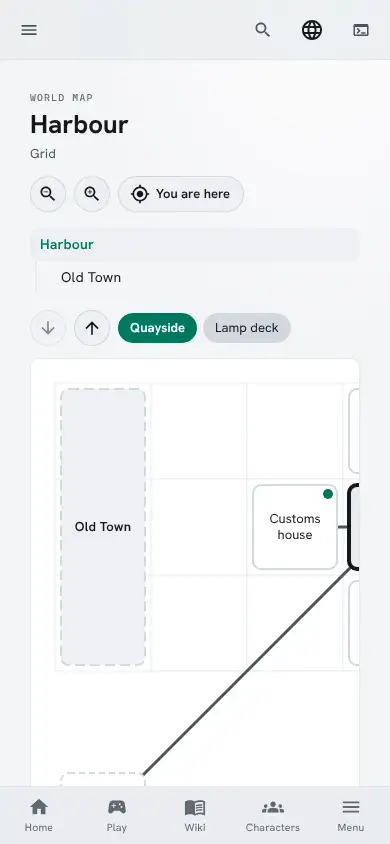
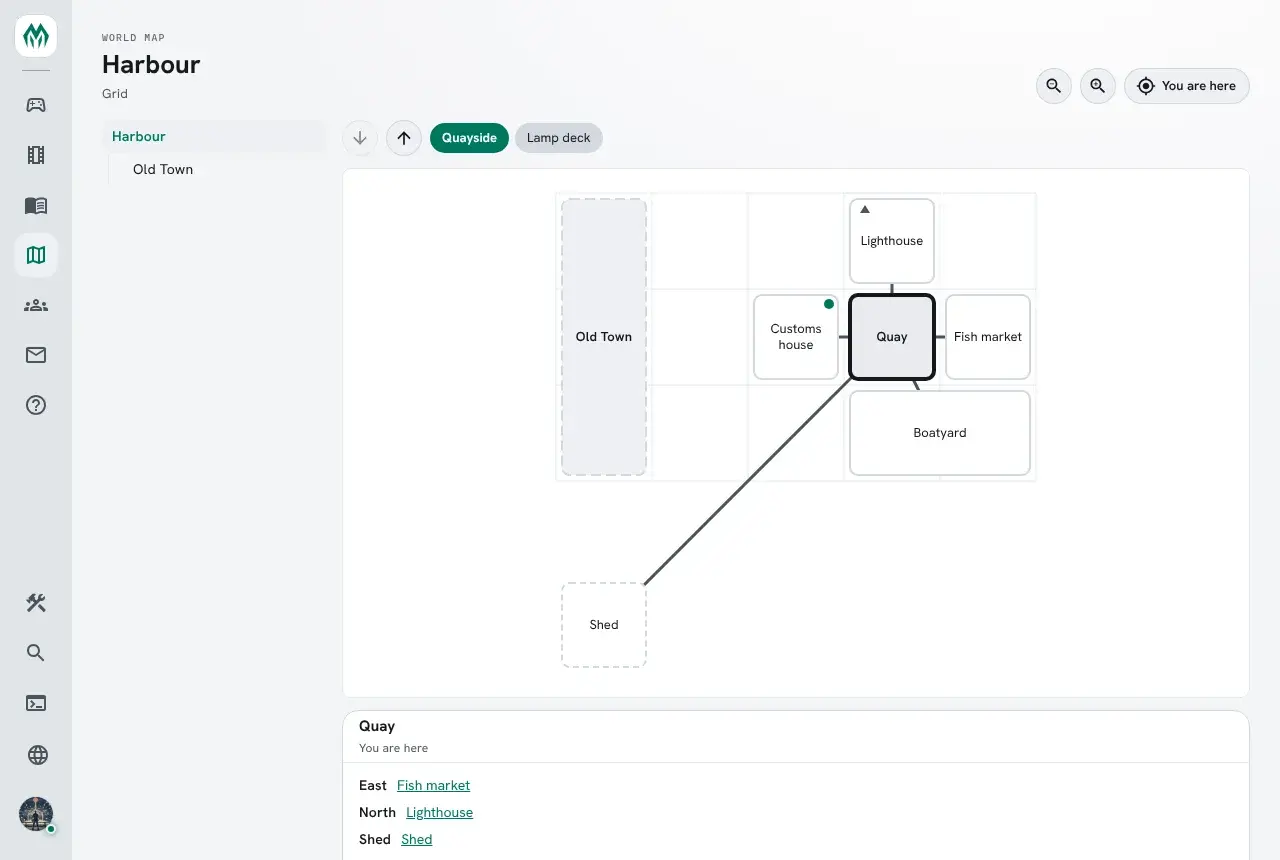
The World map is a portal page that draws the game’s maps. Each map is drawn from its rooms and the exits between them, one level at a time, and the room you are in is marked. Choosing a room lists its exits; choosing an exit’s room moves to it, and an exit that leads to another map opens that map.
This page covers:
- Setting it up
- Making a map
- How a map is drawn
- Moving around a map
- Levels
- Kinds of place
- Several maps
- Regions
- Picture maps
- Getting there
- Changing a map in the portal
- Who sees what
Setting it up
Section titled “Setting it up”The World map is the World map package. First-run setup offers it ticked under Building in its last step;
a game that is already running installs it from the portal’s Packages page. Once it is installed, World map appears in
the portal’s menu. On a game with +help, ticking it in setup also brings World map: +help
topics, which adds +help map.
Making a map
Section titled “Making a map”A map is a thing whose MAP`KIND attribute says how it is drawn. A room is on the map that is
its zone, so @chzone puts a room on a map.
A builder, standing in a room called Boathouse:
> @create HarbourCreated: Object #32.> &MAP`KIND Harbour=coordinatesHarbour/MAP`KIND - Set.> @chzone here=HarbourUnlocked zone Harbour(#32Tn) - automatically zone-locking to itselfZone changed.> &MAP`COORDS`X here=3Boathouse/MAP`COORDS`X - Set.> &MAP`COORDS`Y here=-1Boathouse/MAP`COORDS`Y - Set.Do the same in each room of the harbour. Harbour now shows in the World map’s list.
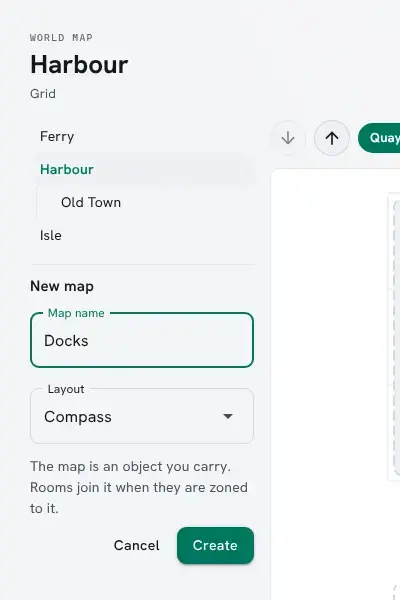
New map, under the map list in the portal, runs the first two commands for you and opens the new map. The map object stays in your inventory. Destroying it takes the map away.
How a map is drawn
Section titled “How a map is drawn”MAP`KIND is one of three:
| Kind | Shown as | A room’s place |
|---|---|---|
coordinates | Grid | the cell its MAP`COORDS`X, MAP`COORDS`Y and MAP`COORDS`Z name |
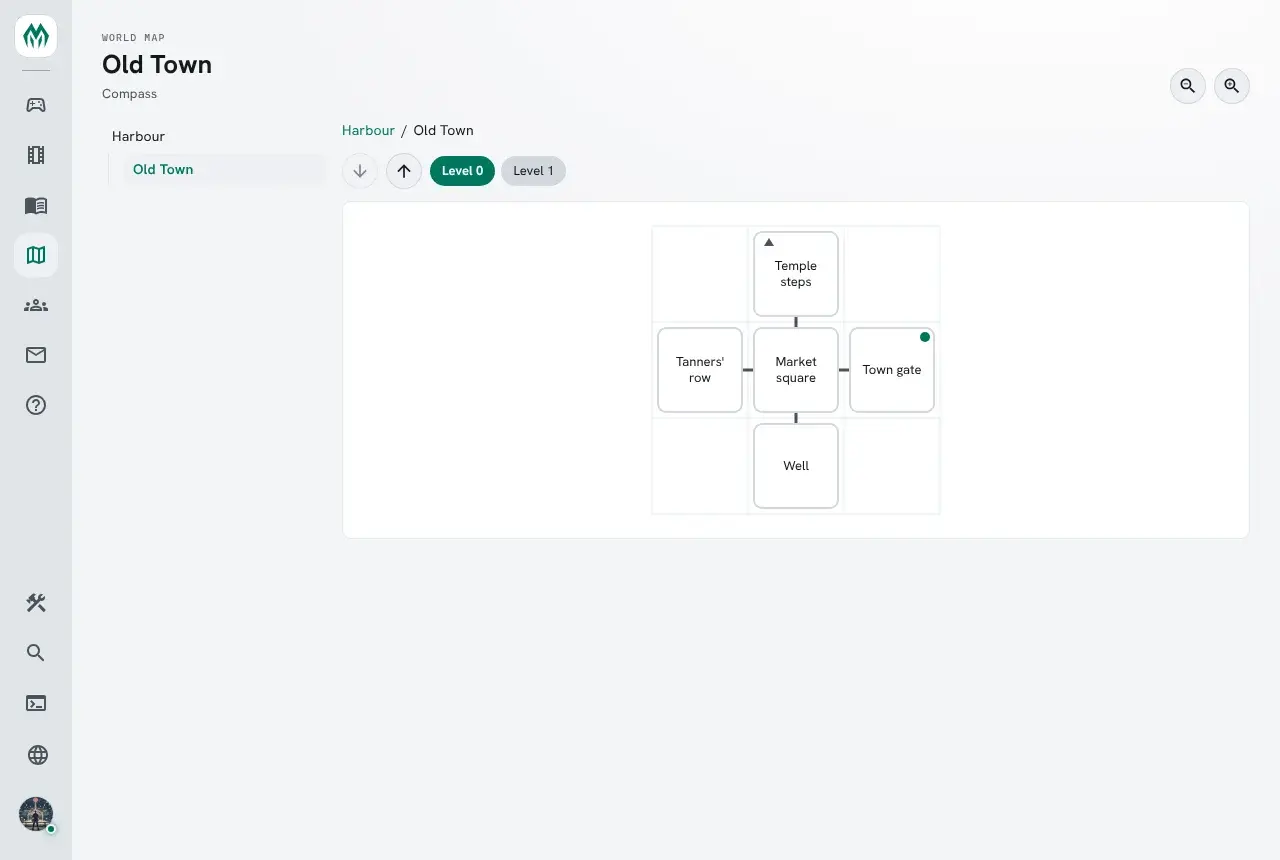
compass | Compass | worked out from its exits: a room north of another is drawn above it |
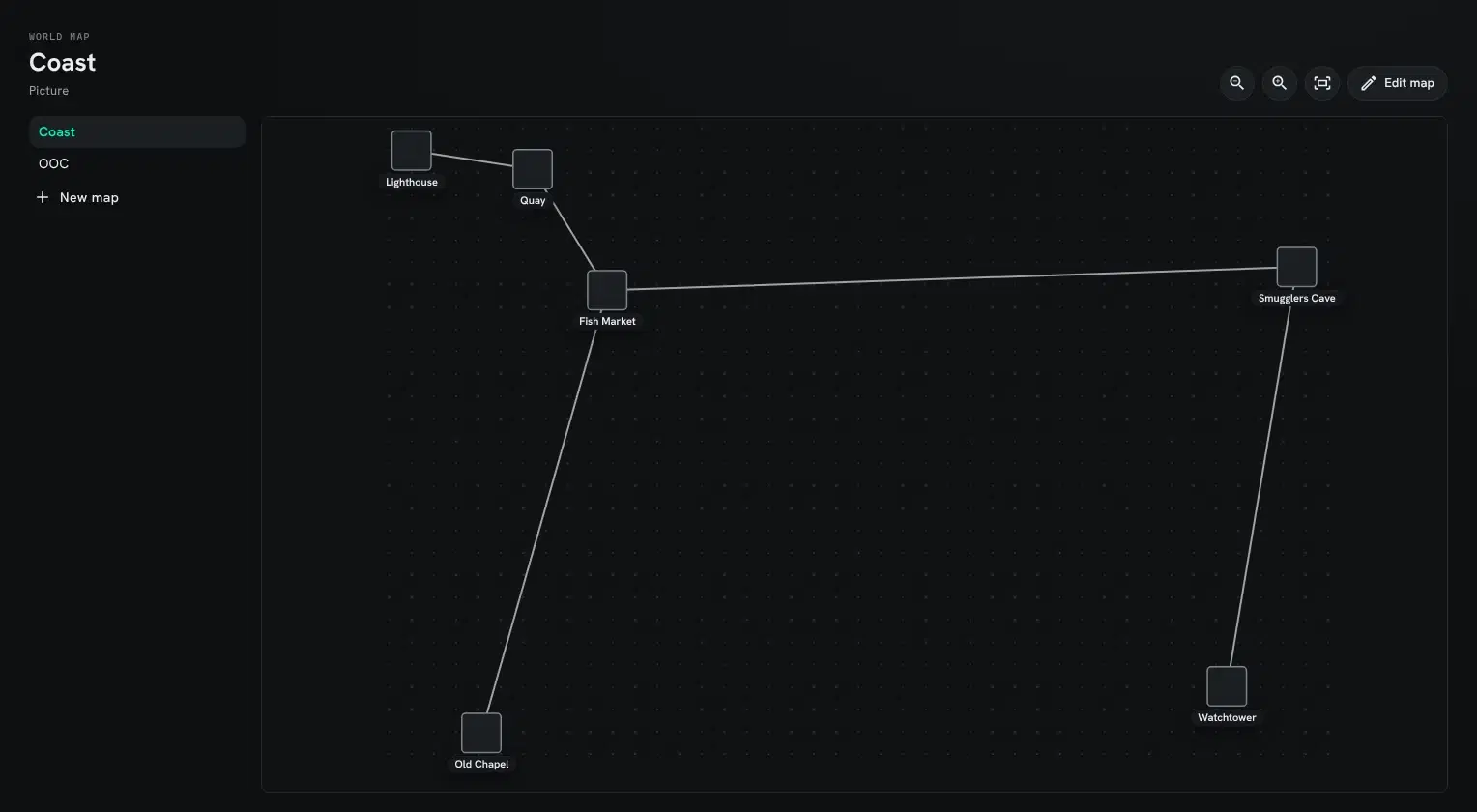
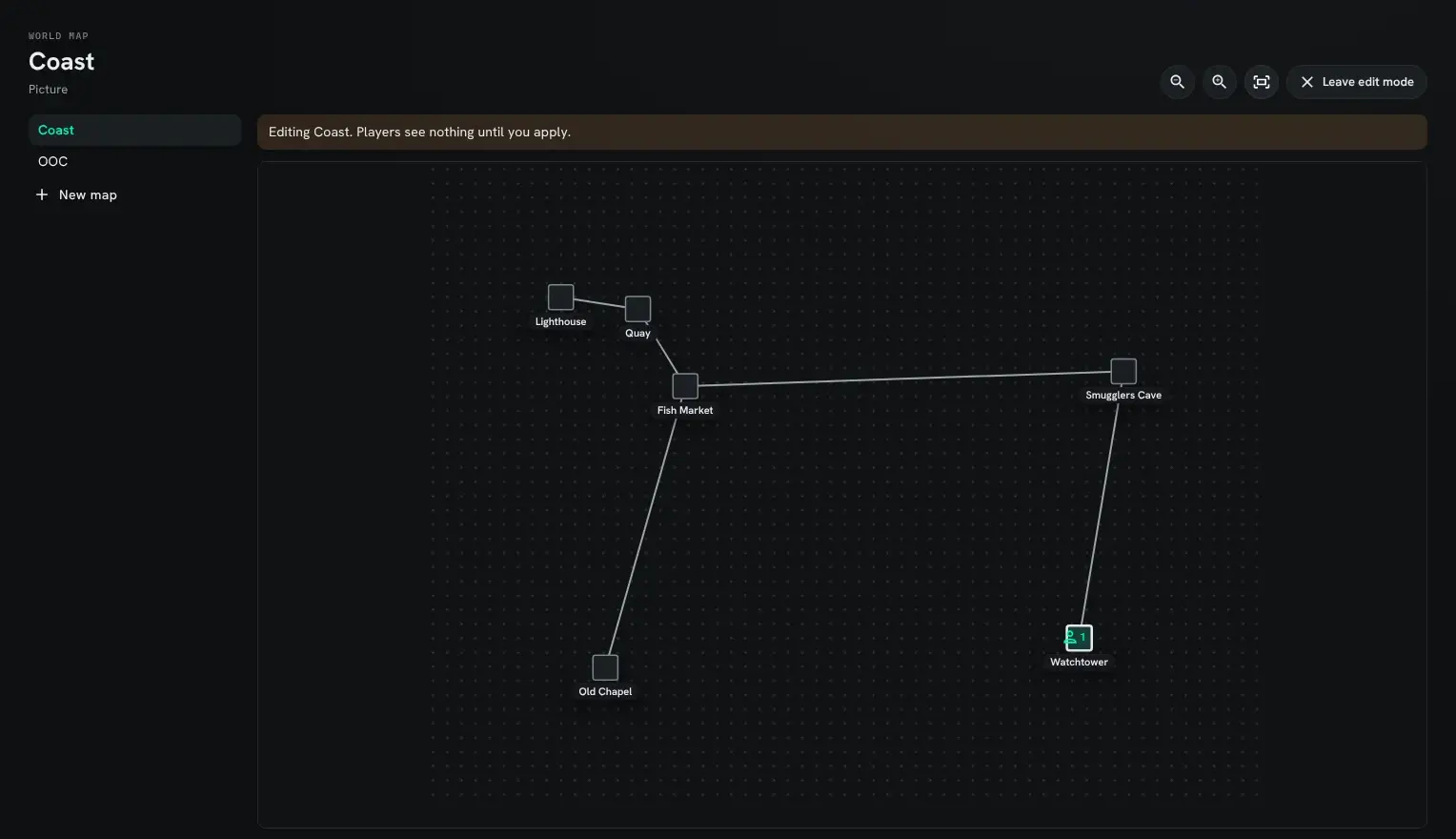
graph | Picture | the point its MAP`POS`X and MAP`POS`Y name, with no grid |
North is up. On a compass map, up and down exits change the level (see Levels).
A room covers one cell unless its MAP`SIZE`W and MAP`SIZE`H say more. The cell its
coordinates name is its south-west corner, so &MAPSIZEW Boatyard=2 makes the Boatyard two cells
wide, reaching east.
A compass map keeps any coordinates a room does have and places the rest by their exits, so a few
coordinates can pin down where a large area sits. Exits named or aliased n, north, ne,
northeast and so on, u, up, d and down count; other exits are drawn as lines between
rooms but do not place them.
A room the map cannot place, such as a room on a grid map with no coordinates, is drawn with a dashed edge in a row below the others, on the level of a room its exits join it to.
Moving around a map
Section titled “Moving around a map”A map opens at the size that fits its frame, with the room you are in in the middle. The zoom buttons above the map make it larger or smaller around the middle of the view, and Fit the map fits it again. Drag with the mouse, scroll, or swipe with one finger to move across a map larger than its frame. To zoom about a spot, pinch on a touch screen or trackpad, or hold Ctrl and use the mouse wheel.
Lines stay the same width at any size, and room names grow and shrink with the map. A room too small to hold its name has the name on a label under it; smaller still, the name shows only when you point at the room, and a screen reader still reads it.
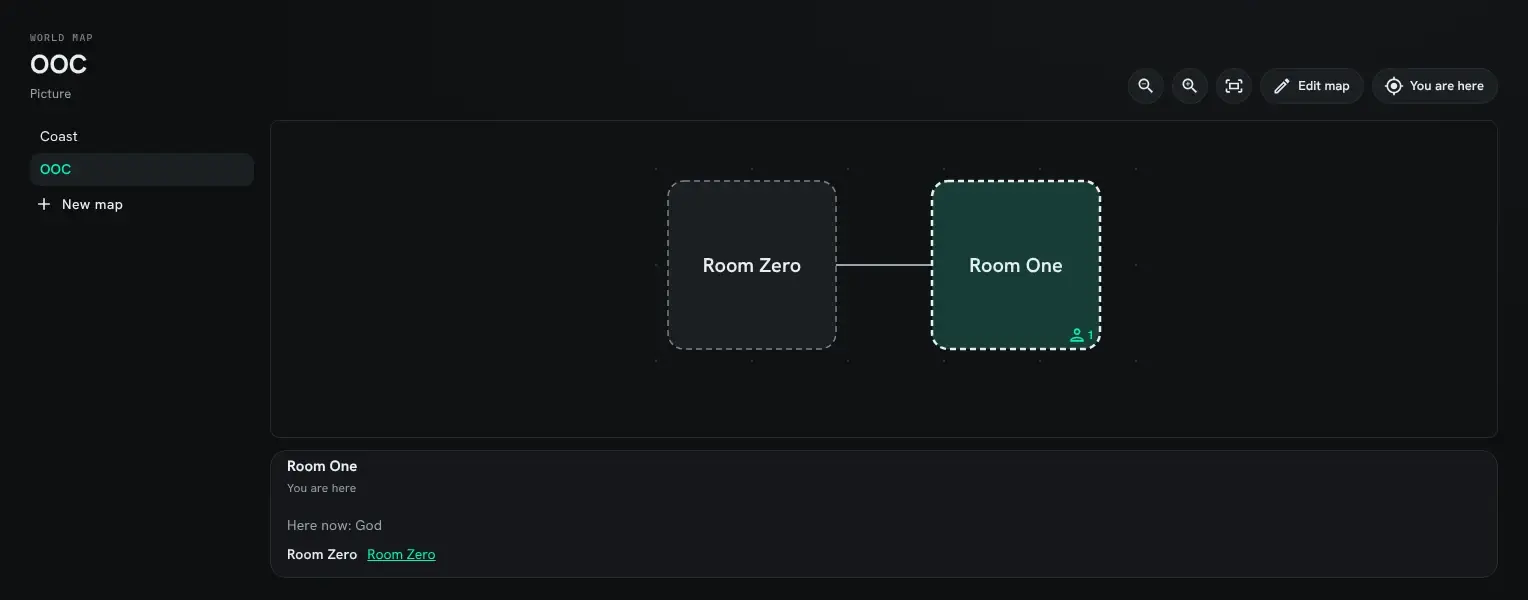
You are here brings your room to the middle of the view. While you are looking at the World map, not editing it, it follows you: when you walk to another room, that room is marked and brought to the middle, and when you walk onto another map, that map opens.
Levels
Section titled “Levels”Z is the level. A coordinates or compass map shows one level at a time, with a button for each
level and arrows that step up and down. A room with an exit up or down is marked with a small
arrow, and choosing that exit’s room in the room’s exits goes to its level.
MAP`LEVEL`<level> names a level; a level without a name is shown as its number.
MAP`LEVEL is the level a visitor sees first. Someone standing on the map starts on their own
level.
> &MAP`LEVEL`-1 Harbour=SewersHarbour/MAP`LEVEL`-1 - Set.> &MAP`LEVEL Harbour=-1Harbour/MAP`LEVEL - Set.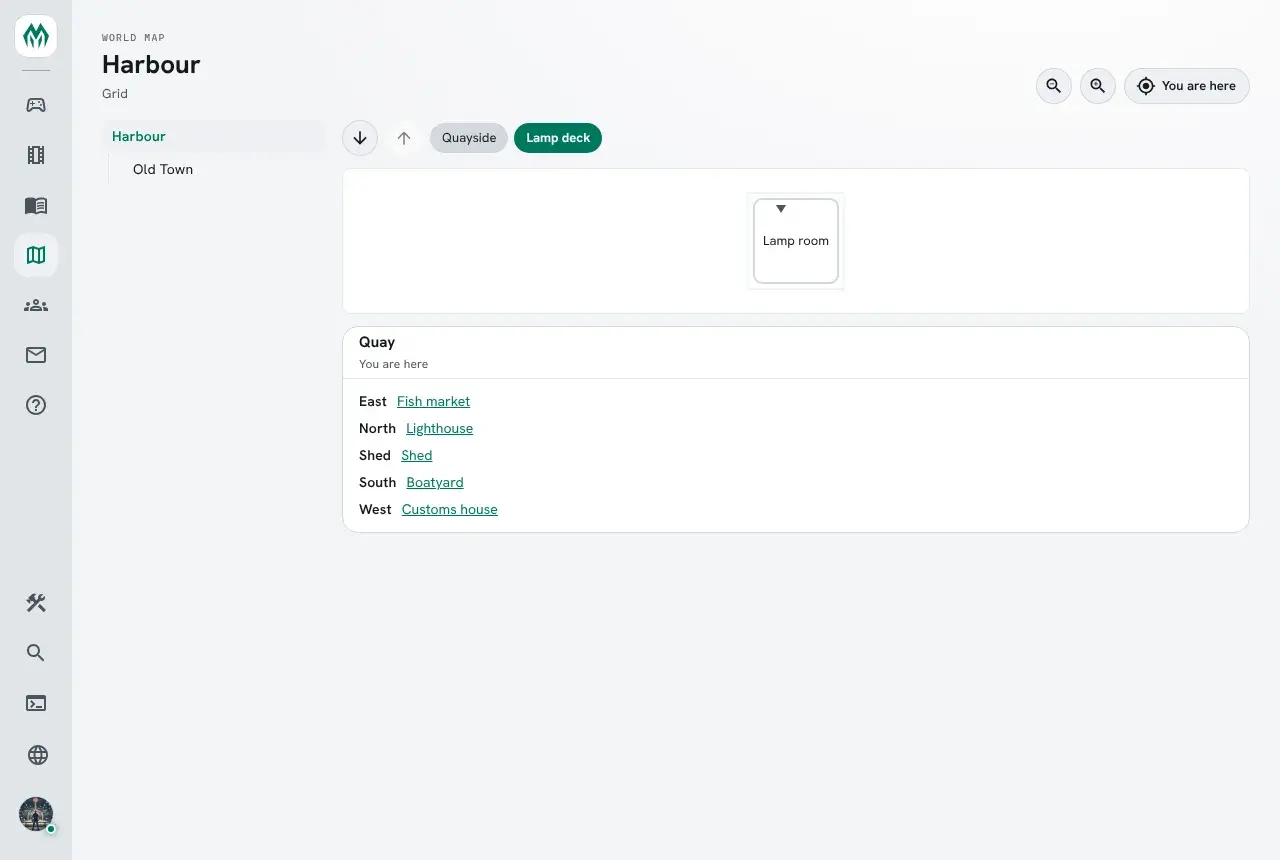
Kinds of place
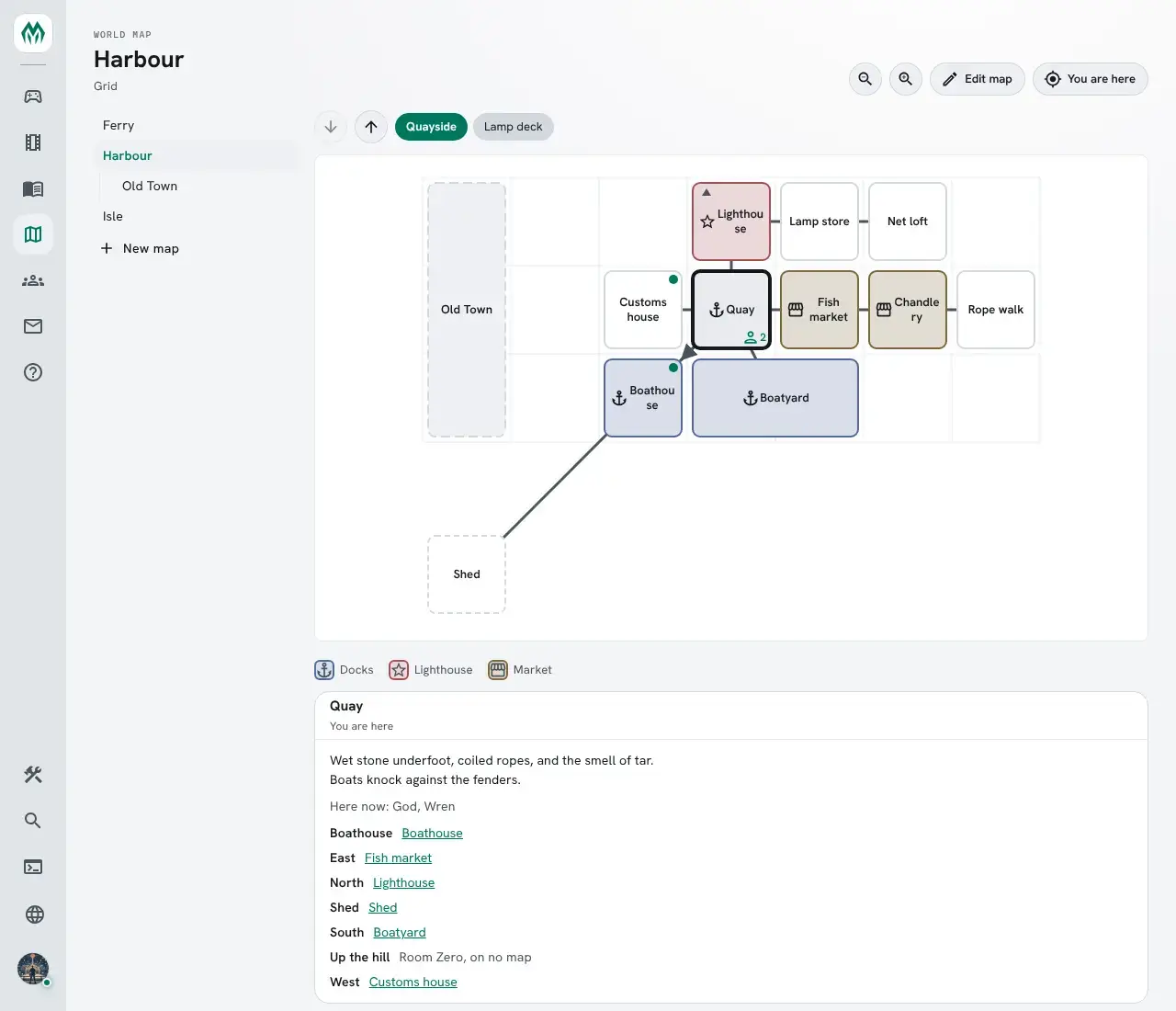
Section titled “Kinds of place”A room’s ENVIRONMENT attribute says what kind of place it is, such as dock or market. The
gmcp-room package sends the same attribute to a MUD client’s mapper. The map’s legend says how each
kind is drawn. Each part is an attribute of its own on the map object:
MAP`LEGEND`<kind>`LABEL, `TONE (a tone() colour name) and `ICON. A map inside
another map uses the outer map’s legend, unless it names that kind itself.
> &ENVIRONMENT Quay=dockQuay/ENVIRONMENT - Set.> &MAP`LEGEND`DOCK`LABEL Harbour=DocksHarbour/MAP`LEGEND`DOCK`LABEL - Set.> &MAP`LEGEND`DOCK`TONE Harbour=blueHarbour/MAP`LEGEND`DOCK`TONE - Set.> &MAP`LEGEND`DOCK`ICON Harbour=anchorHarbour/MAP`LEGEND`DOCK`ICON - Set.An icon is one of water, forest, park, mountain, road, home, shop, food, drink,
bed, temple, castle, shield, anchor, star, chat, book, mask, lock and flag, or
one or two characters drawn as text. The legend under the map lists only the kinds its rooms
use.
Choosing a room also shows its description, and the players there whom you could find with
loc(). A room with players in it shows how many.
A new game’s starter world has two zones drawn this way, OOC and IC. The arrival room, Room Zero, is on the OOC zone, and its In Character exit leads to the Commons, the first room in character. That exit lets through only approved characters and staff.
Several maps
Section titled “Several maps”A game may have as many maps as it likes, each of its own kind. An exit from a room on one map to a room on another is drawn as a dot on the room it leaves; in the room’s exits it reads To the map and the map’s name, and choosing it opens that map.
Regions
Section titled “Regions”A map zoned to another map is a region inside it, as a room zoned to a map is on it. Regions nest as deep as you like: Sol System, Earth, United States, New York, Brooklyn.
A region is listed under its map, and the maps it is inside are named above it, each a link. On
its map, a region is a grey box that opens it. The box goes where the region’s own
MAP`COORDS (MAP`POS on a graph map) and MAP`SIZE say, as a room’s would; without
them it is drawn in the row below. While you stand anywhere inside a region, its box is marked.
Holding the Old Town map, with the Harbour beside it:
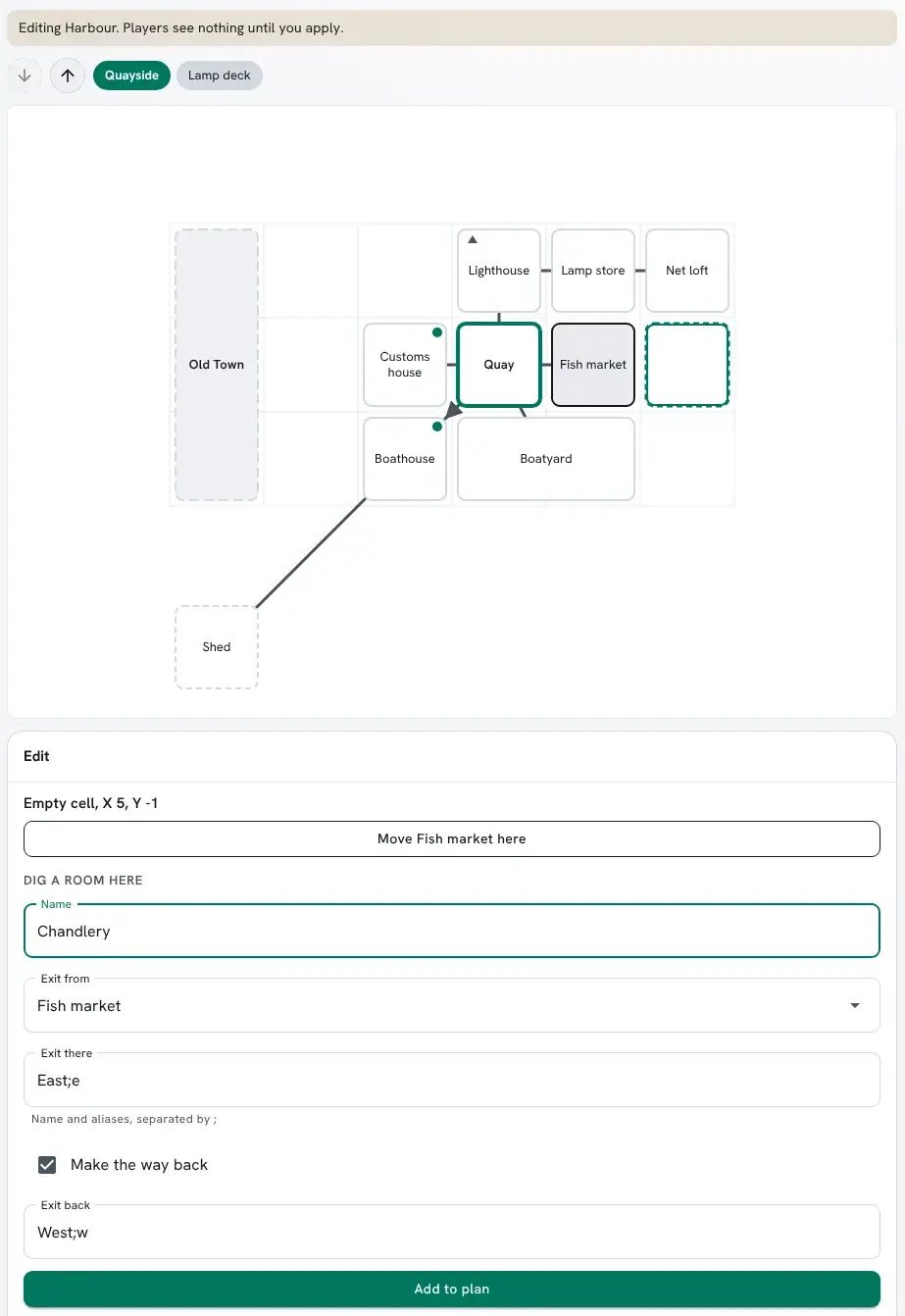
> @chzone Old Town=HarbourZone changed.> &MAP`COORDS`X Old Town=0Old Town/MAP`COORDS`X - Set.> &MAP`COORDS`Y Old Town=-2Old Town/MAP`COORDS`Y - Set.> &MAP`SIZE`H Old Town=3Old Town/MAP`SIZE`H - Set.Old Town is now listed under Harbour, and drawn on the Harbour’s left, three cells tall.
Picture maps
Section titled “Picture maps”A graph map can be drawn on a picture. MAP`BACKDROP holds the picture’s address: a path
on the game’s own site, such as the link of an image in the wiki’s image library, or an https
address. Any other address is not shown. MAP`SIZE`W and MAP`SIZE`H are the picture’s
size in pixels.
Each room’s MAP`POS`X and MAP`POS`Y are then a point on the picture, in pixels from its
top left corner. A room is drawn as a pin with its name under it, unless it has a MAP`SIZE of
its own: then it is an area of that many pixels around its point.
A graph map with no picture draws each room without a MAP`SIZE as a box, as large as a grid
cell, on a ground of faint dots; a room with a MAP`SIZE keeps that size. MAP`POS`X and MAP`POS`Y are then the box’s centre, in the same units, so rooms 96
apart sit side by side.
Holding the Isle map:
> &MAP`BACKDROP Isle=/api/wiki-assets/fd8b00b0889f4bee97f0eb7f7a8849f7/isle.pngIsle/MAP`BACKDROP - Set.> &MAP`SIZE`W Isle=900Isle/MAP`SIZE`W - Set.> &MAP`SIZE`H Isle=640Isle/MAP`SIZE`H - Set.Getting there
Section titled “Getting there”Choosing a room shows the way there from where you stand: the exits to take in turn, over the exits you can see, on this map or across others. The way is drawn on the map, and under the room’s exits is one line you can paste into any client. Walk there runs it as your character.
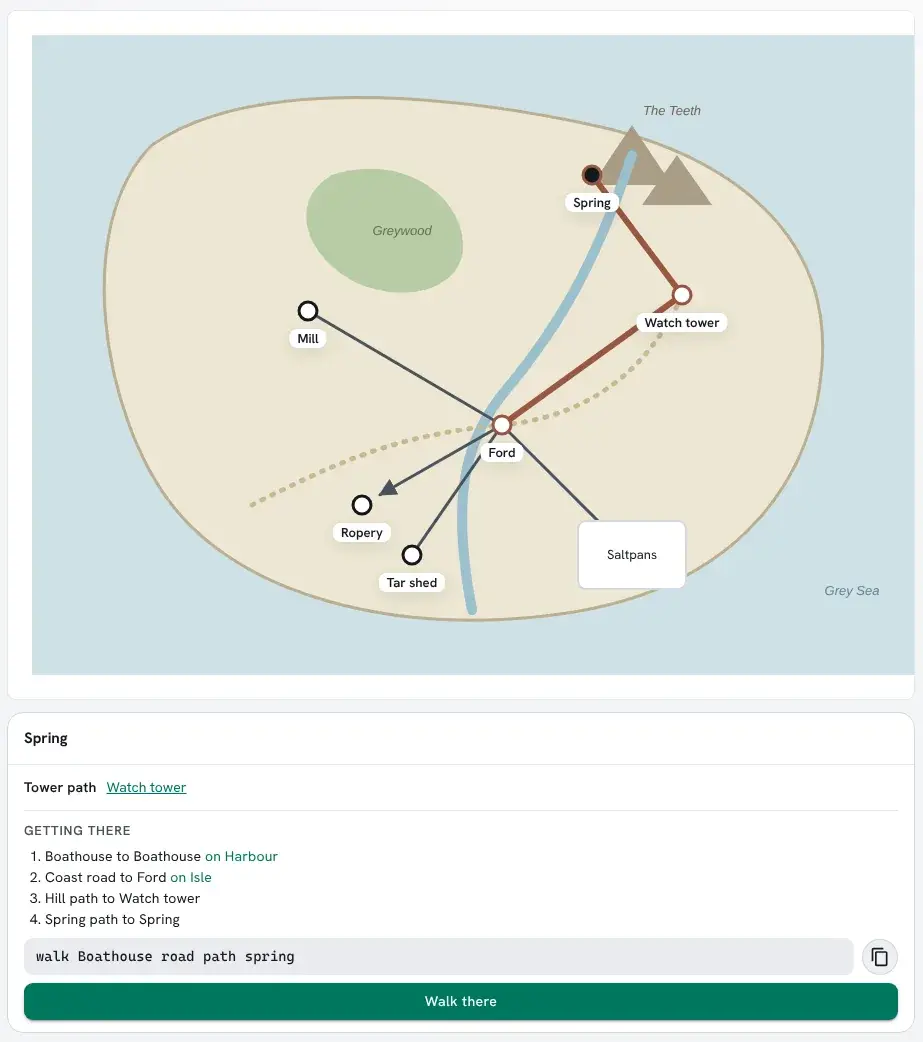
walk takes exits separated by spaces and stops at the first exit that refuses you, such as a
locked door. An exit whose name has a space is written by its first alias without one, or else in
double quotes: walk "Old gate" north.
Changing a map in the portal
Section titled “Changing a map in the portal”If you control a map, the World map shows Edit map. While you edit, nothing reaches the game, and the map shows what it will look like once your changes run.
- Choose a room you control to rename or describe it, set its place or size, dig a room above or below it, or take it off the map. A room you do not control is drawn faded and cannot be changed.
- A chosen room lists its exits. Rename or destroy one you control, or open a way to another room on the map. An exit name the room already uses is refused.
- Choose an empty cell next to a room, or a spot on a picture map, to dig a room there, with a
description if you like. A picture map with no picture leaves room around its rooms to choose a
spot in, so a room can be placed or moved well away from the others. It is joined to the room straight beside it by an exit and, if you like,
an exit back; on a grid the names follow the direction, such as
East;ethere andWest;wback.inandiare refused as exit names, asiis the inventory. - Add a room you control that this map’s exits lead to and that is on no map, or a room by its dbref.
- On a grid, name the level on show.
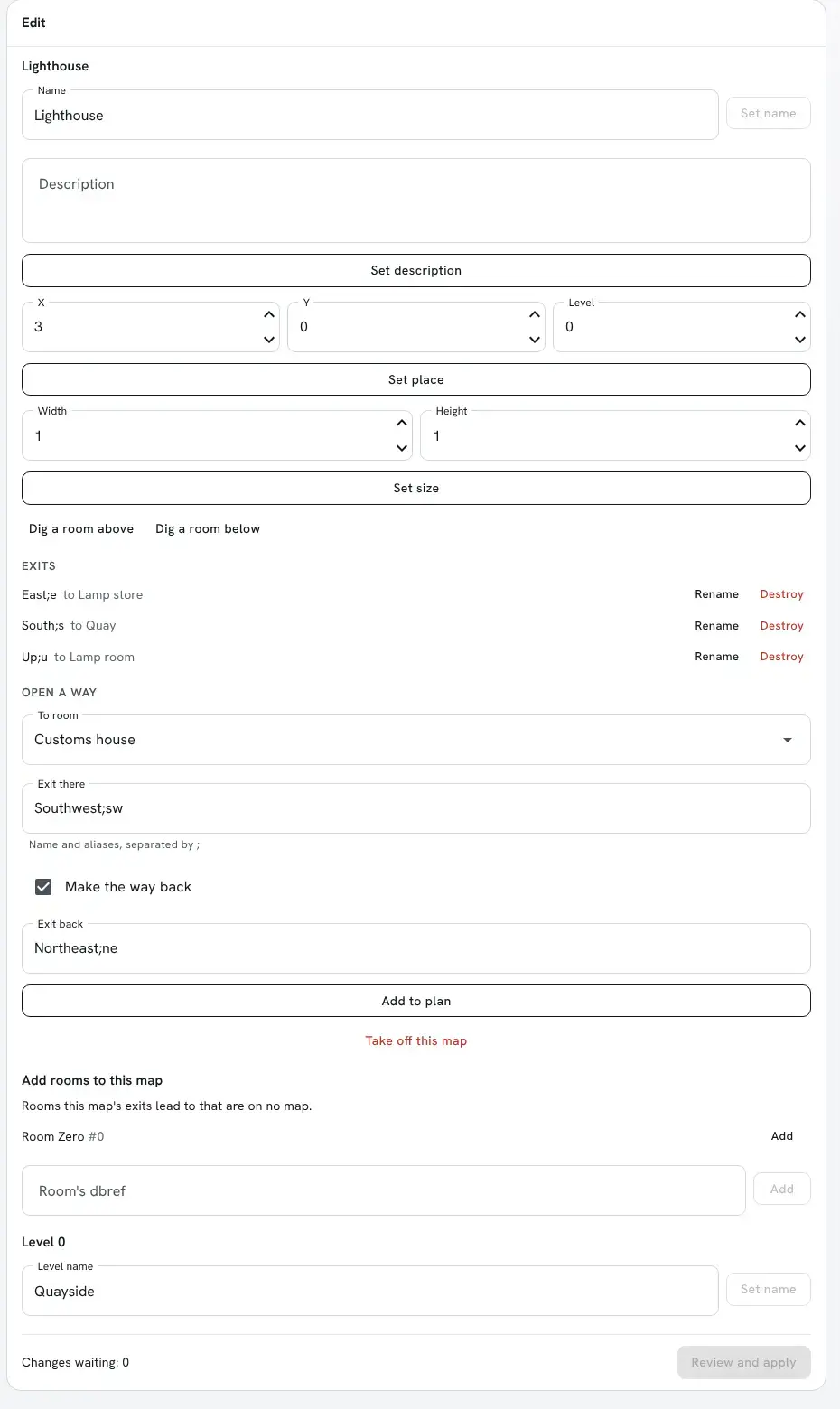
Review and apply lists each change as the commands it runs. When your quota limits what you build, the review counts the rooms and exits the changes make, and a plan that needs more than you have left cannot be applied. Apply runs the commands as you, with your permissions, one after another, and checks each one. The first that fails stops the rest, and the list that follows says which changes ran.
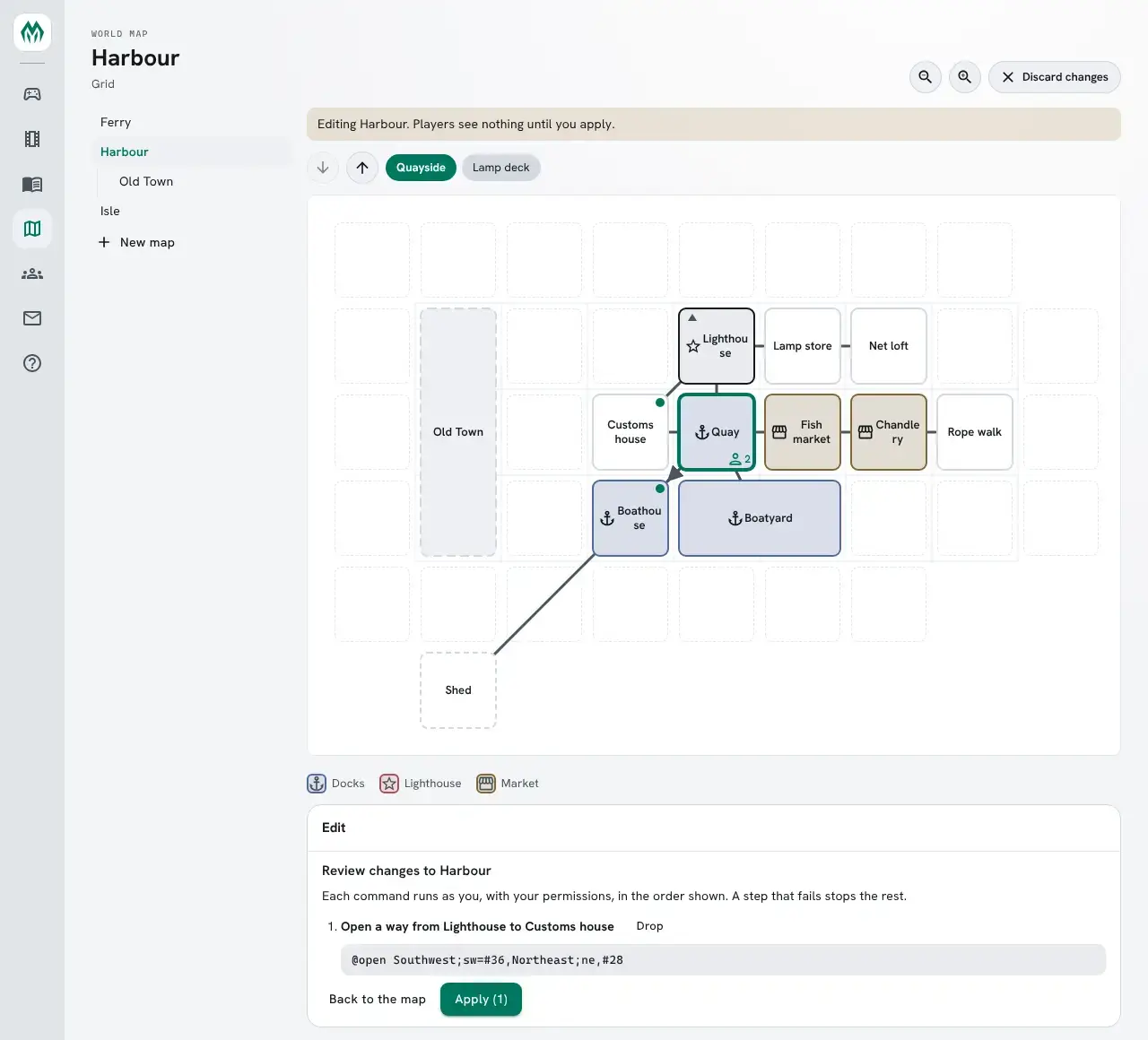
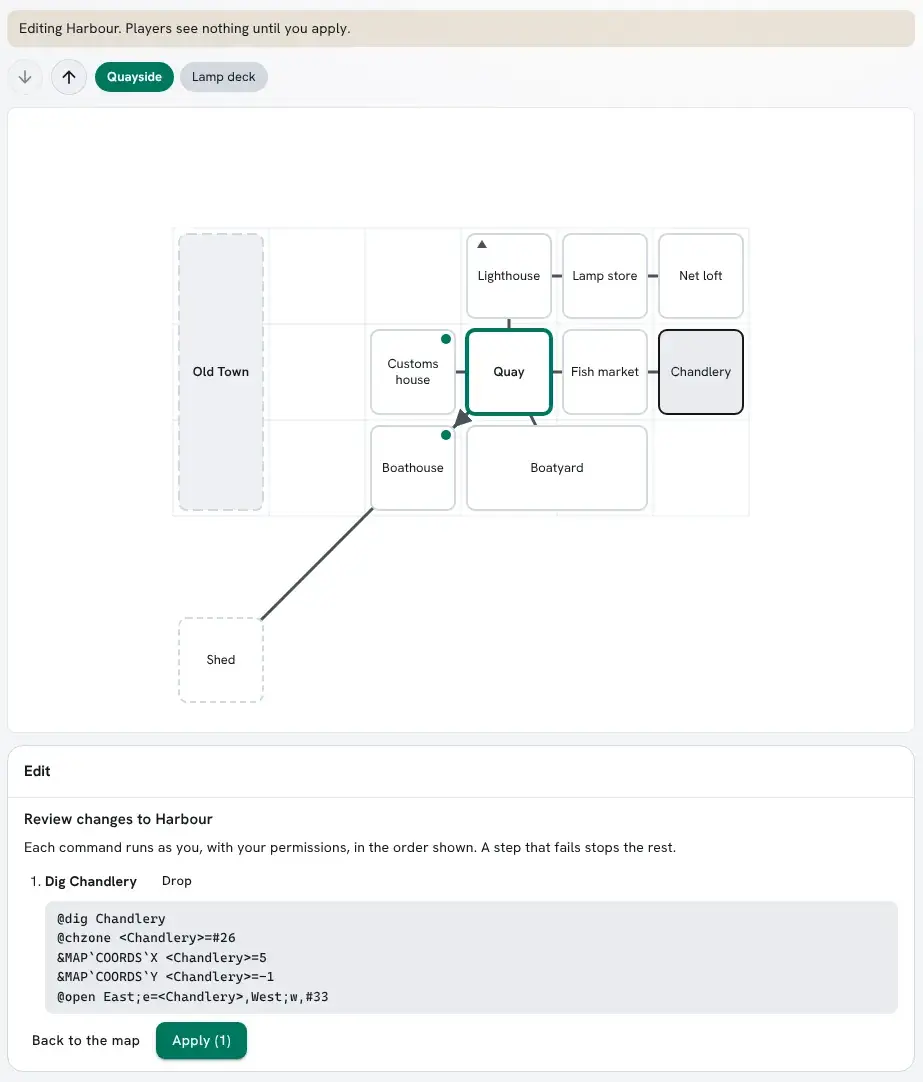
On the Isle, digging a Tar shed at a spot joined to the Ford runs:
> @dig Tar shedTar shed created with room number 115.> @chzone #115=IsleZone changed.> &MAP`POS`X #115=380Tar shed/MAP`POS`X - Set.> &MAP`POS`Y #115=520Tar shed/MAP`POS`Y - Set.> @open Tar lane;tar=#115,Ford path;fp,#73Opened exit #116Trying to link...Linked exit #116 to #115Opened exit #117Trying to link...Linked exit #117 to #73Who sees what
Section titled “Who sees what”A map is listed to everyone once its MAP`KIND is set. Each player sees only the rooms they
could see in the game: a DARK room is left out unless they can examine it, and so are its exits.
The page shows the map as the character you are playing, and changes when you switch characters.
Apps you allow to Run commands can read the same maps. See Apps That Act for You.
On a phone the list of maps sits above the map, and the map scrolls inside its frame.