
The Application Builder
The Application builder makes a portal application without any code: a form players fill in, a sheet that shows a character’s values, or a widget for other pages. It walks through four steps and keeps the result as JSON in an attribute, which a softcoder can still edit by hand afterwards.
The examples follow God building a Watch Duty form for the Harbour Watch, and Marrow filling it in.
Starting an app
Section titled “Starting an app”Open Build & manage, Application builder (/build/apps). Every player except guests can
use it, and saves what they build on an object they control. Pick a starting point:
- Blank: one empty page.
- Character sheet: a few details, traits as chips and scores as tiles.
- Request form: a subject, a kind and details.
- Profile editor: a form that shows a character’s profile values and saves their changes.
Watch Duty starts from Request form.
What it is
Section titled “What it is”Give it a Name, shown as its title and in the menu. The address name follows it, so
Watch Duty becomes /apps/watch-duty. Then say whether people read it or fill it in and send
it, and whether it is a page of its own or a widget placed on other pages.
Laying it out
Section titled “Laying it out”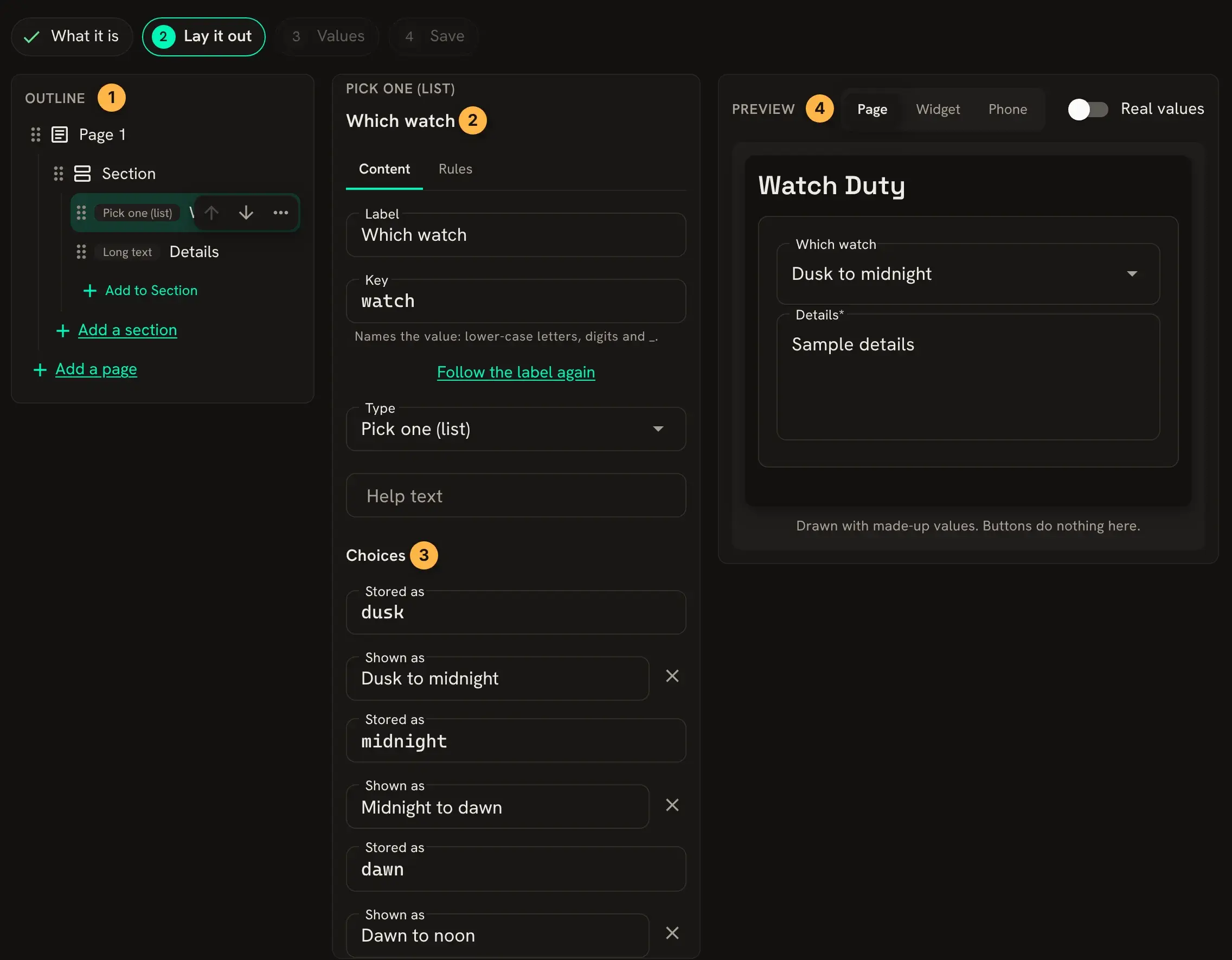
- The outline: pages, sections and the fields in them. Add to Section adds a field, and the
...beside one deletes or duplicates it. - The chosen field’s label and key. The key names the value and follows the label until you change it.
- A pick-one field’s choices. Stored as is what is saved, and Shown as what the player sees.
- The preview, at page, widget or phone width.
For Watch Duty, the Subject field is deleted and the kind field becomes Which watch, with the
key watch and three choices: dusk, midnight and dawn.
Values
Section titled “Values”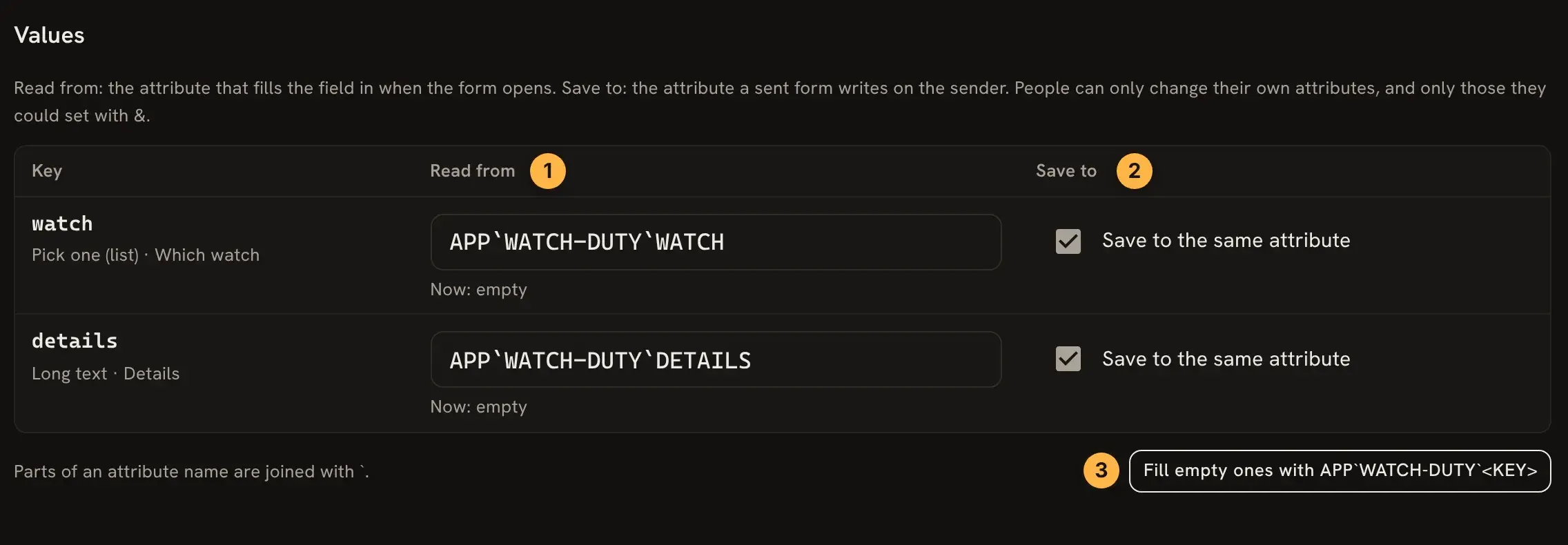
- Read from is the attribute that fills the field in when the form opens.
- Save to is the attribute a sent form writes on the sender. Ticking Save to the same attribute uses the one it reads from.
- Fill empty ones names every empty attribute after the app and the key.
A form only writes attributes on the person who sends it, and only ones they could set themselves
with &. A view or sheet reads the viewer’s own attributes, or those of the character being
looked at when it is a widget, and shows only what the viewer could read with get().
Saving
Section titled “Saving”The last step checks for problems and asks for the object to keep it on. Saving is refused on an
object you do not control. Watch Duty goes on the
Watch Office, #55, which God controls. The step lists the attributes it writes there,
DATA`APP`WATCH-DUTY and three beside it, and then offers:
- Save and show adds it to the portal at once, as a page in the Play menu or as a widget in
the layout editor. This needs the
applications.adminpermission. - Only save it keeps it on the object, for staff to show later under Applications
(
/admin/applications).
Without applications.admin there is only a Save button, and the page says to ask staff to
show it.
Filling it in
Section titled “Filling it in”Marrow opens /apps/watch-duty, picks a watch and sends it:
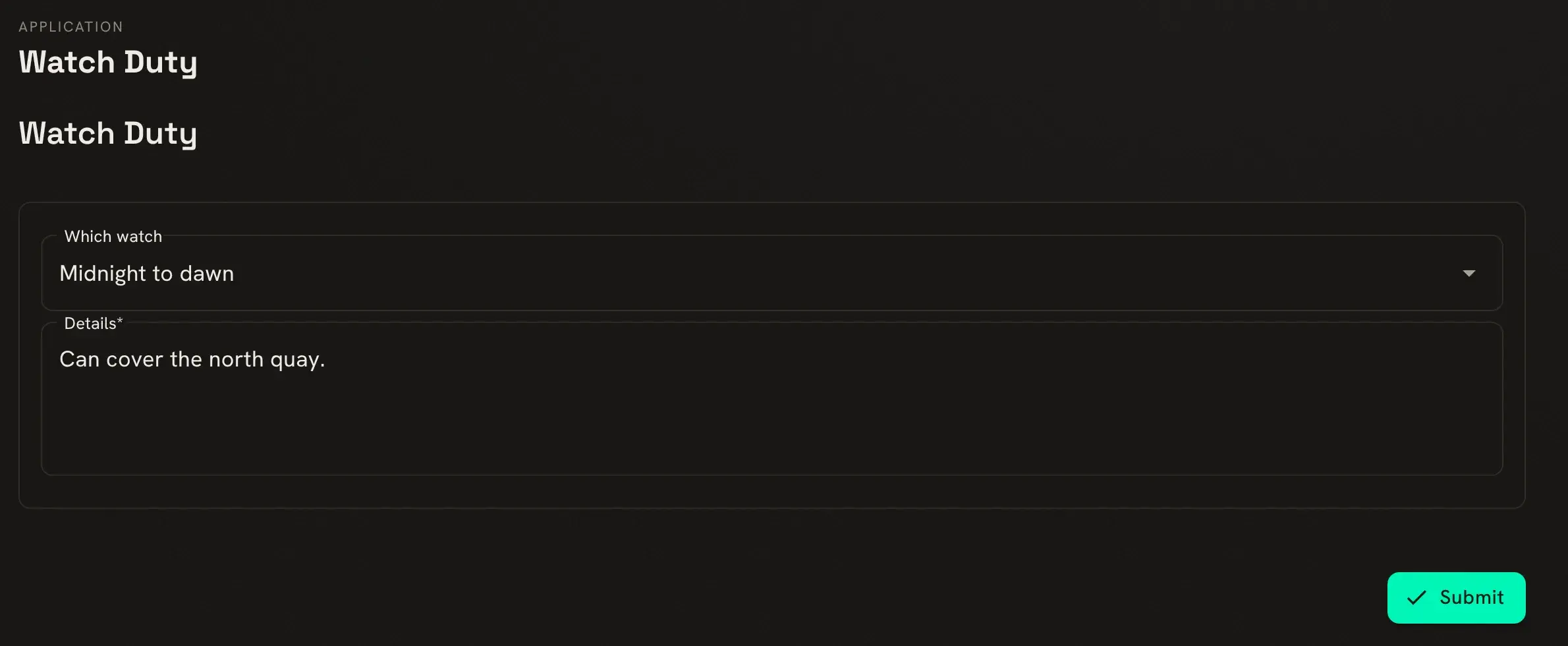
The form saves the stored value, not the words shown:
> think get(me/APP`WATCH-DUTY`WATCH) / [get(me/APP`WATCH-DUTY`DETAILS)]midnight / Can cover the north quay.When Marrow opens the form again, it shows what was sent last time, because each field reads from the attribute it saves to. Staff softcode can read the same attributes to draw up the rota.
Changing it later
Section titled “Changing it later”Your apps, on the builder’s first screen, lists apps kept on your own character and apps
already shown in the portal. Open one to change it. For one kept elsewhere and not shown yet, such
as Watch Duty on #55 after Only save it, give the object and address name under Open a
saved one.
The game’s apps lists portal apps whose layout is kept beside their route on the HTTP handler, such as ones packages install. Changing one needs control of the handler, so it is usually staff work. When a package upgrade changes a layout you changed, the package manager asks which to keep.
Next steps
Section titled “Next steps”- Portal Applications for who can open an app and where it shows.
- Building Portal Applications to write one in softcode, with routes behind its buttons.