
Staff Roles and Permissions
SharpMUSH has no single wizard bit. Access comes from roles, named sets of permissions that work
like the roles on a Discord server. A character can hold several, and an account can hold roles that
every one of its characters gets. This page covers the everyday jobs. The roles and @role help
topics have the full rules.
The examples follow God setting up staff for Marrow and Tamsin.
The roles a game starts with
Section titled “The roles a game starts with”| Role | For |
|---|---|
wizard | Running the game. Holds almost everything. |
moderator | Handling players: the Moderation page and audit log, sitelocks, guests, the wiki and media, and roles below its own. |
royalty | Seeing everything in the game, plus the wiki and media. |
builder | Commands a game has restricted to builders, such as @dig on a game where only builders build. |
helper | Looking up characters, guests and activity in the portal, and the command queue, to help players. |
approved | A character staff have approved. It can write on the wiki and show pictures. |
player | Every character that is not a guest. Never assigned by hand. |
guest | Guest characters. |
everyone | Every object. It lets anyone read the wiki. |
god | #1 alone. |
@role lists them with their priority. A game that came from RhostMUSH, or chose RhostMUSH’s staff
levels in setup, has immortal, councilor, architect and guildmaster in place of helper and
moderator.
Making someone staff
Section titled “Making someone staff”Give the narrowest role that fits the job. A helper does not need to be a wizard:
> @role/assign *Tamsin=helperTamsin now holds helper.@role/unassign *Tamsin=helper takes it away. @set *Tamsin=WIZARD still works and assigns the
wizard role.
Approving a character
Section titled “Approving a character”Once a character meets your game’s bar, such as a finished application, assign approved:
> @role/assign *Marrow=approvedMarrow now holds approved.> think isapproved(*Marrow)1Softcode checks it with isapproved() or hasrole(<character>,approved).
Making your own role
Section titled “Making your own role”A role goes in a category. Make the category, then the role, then say where it ranks and what it allows:
> @role/category/create Scenes=People who run and close scenesRole category Scenes created. Put a role in it with @role/category <role>=Scenes.> @role/create storyteller=Scenes/StorytellerRole Storyteller (storyteller) created in Scenes at priority 1. Set what it allows with @role/allow.> @role/priority storyteller=14Role Storyteller is now at priority 14.> @role/allow storyteller=wiki.delete media.adminRole Storyteller: allows wiki.delete, media.admin.@permission lists every permission a role can allow. Priority only decides who may manage whom:
you can change roles, and the people holding them, only below your own highest role. It never
decides what someone may do.
A role for every character on an account
Section titled “A role for every character on an account”/account gives the role to the account the character belongs to, so all of that player’s
characters hold it:
> @role/assign/account *Tamsin=storytellerTamsin (account Wren) now holds storyteller.One permission for one character
Section titled “One permission for one character”To give one character one thing without a role, set an override:
> @permission/allow *Marrow=game.see_allMarrow: allows game.see_all.@permission/deny takes a permission away from that character even when a role allows it, and
@permission/clear removes the override. @power sets the same overrides under PennMUSH’s power
names.
Checking what someone can do
Section titled “Checking what someone can do”@role/player shows a character’s roles, where each comes from, its overrides, and every
permission it holds and lacks:
> @role/player *Marrow=< Marrow >===================================================================Account: WrenRoles: Approved (11), Player (10), plus everyoneOverrides: allow game.see_all; deny noneAccount overrides: allow none; deny noneHolds: game.see_all game.send_image jobs.manage.own media.upload player.chat player.chown player.commands player.create ...On the Roles page
Section titled “On the Roles page”Everything above can also be done in the portal, under Build & manage, Roles & permissions
(/admin/roles):
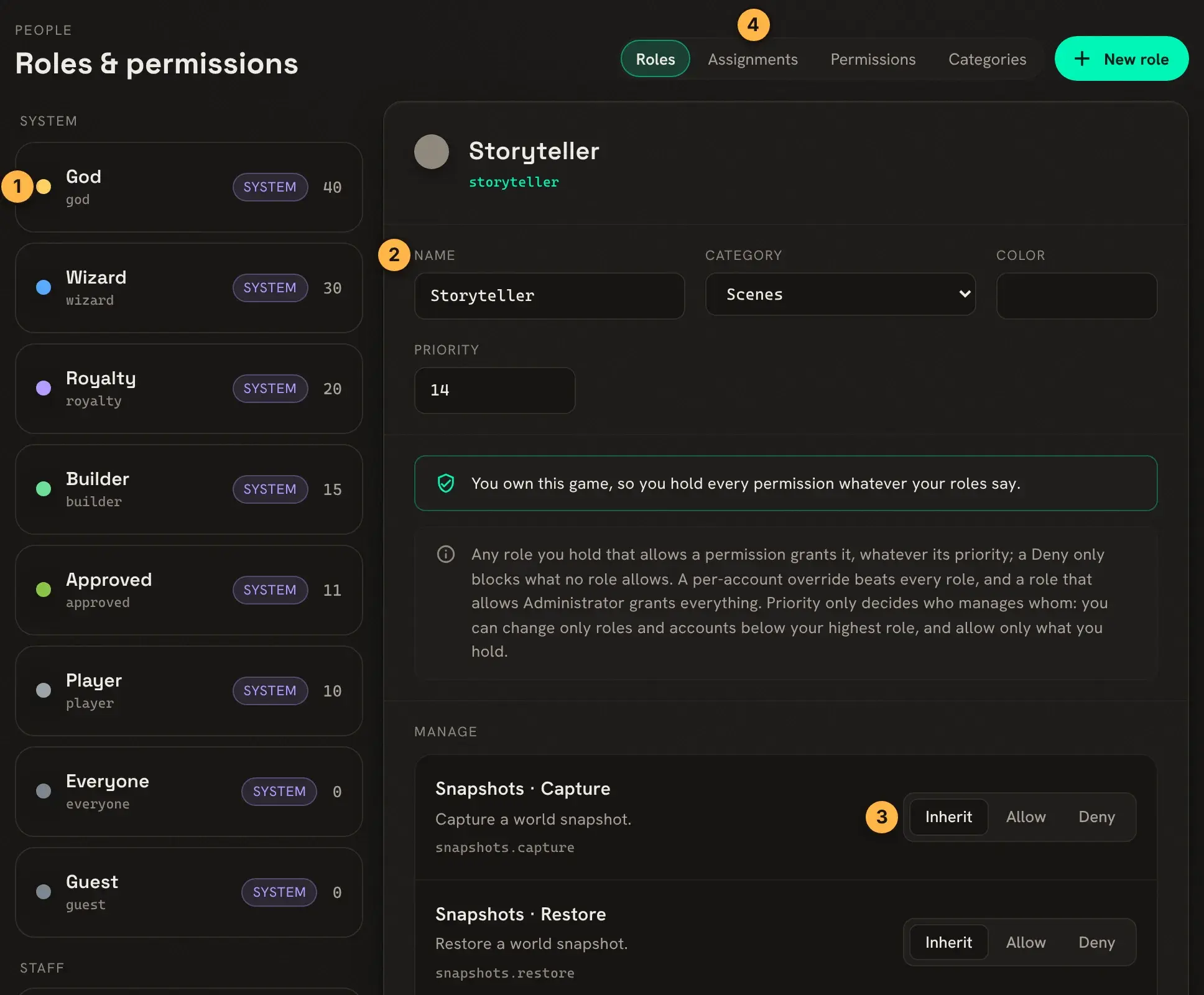
- Every role, grouped by category, highest priority first.
- The role’s name, category, colour and priority.
- Each permission is set to Inherit (leave it to other roles), Allow or Deny.
- Assignments gives roles to characters and accounts.
Next steps
Section titled “Next steps”help rolesexplains how roles combine, guarded roles, and the full list of what each built-in role allows.- Staff List shows staff to players, with duty status.