
Playing a Game
This page walks through a first session on a SharpMUSH game: making a character, moving, talking, paging, channels and mail. Everything works the same in the game’s website terminal and in a MU* client such as Mudlet or BeipMU. The examples follow Marrow, a new character, on an account named Wren.
An account and a character
Section titled “An account and a character”Your account is your sign-in. A character is who you play. One account can hold several characters, and each character has its own password.
On a game’s website, use Register, then Create a character. The Web Portal guide covers those pages.
In a MU* client, connect to the game’s address and port, then make the account and its first character on the connect screen:
> register Wren Paper-Lantern-7Account 'Wren' created successfully.
-< Your account is ready >----------------------------------------------------create <character> <password>  create your first characterclaim <character> <password>   add a character you already haveplay <character>               enter the game as one of them> create Marrow Tide-Glass-31
register also takes an email address before the password: register Wren [email protected] Paper-Lantern-7. create makes the character and puts you in the game as it.
Next time, connect straight to the character:
> connect Marrow Tide-Glass-31To add another character, login to the account and create again. A character you made before
the game had accounts joins yours with claim <character> <password>.
Many games show a short checklist when a new character arrives. It ticks itself off as you go, and
+welcome shows it again. See Getting Started Checklist.
The website terminal
Section titled “The website terminal”On a game’s website, Play opens a terminal in the page. It takes the same commands as a MU* client and adds a few panes around them:
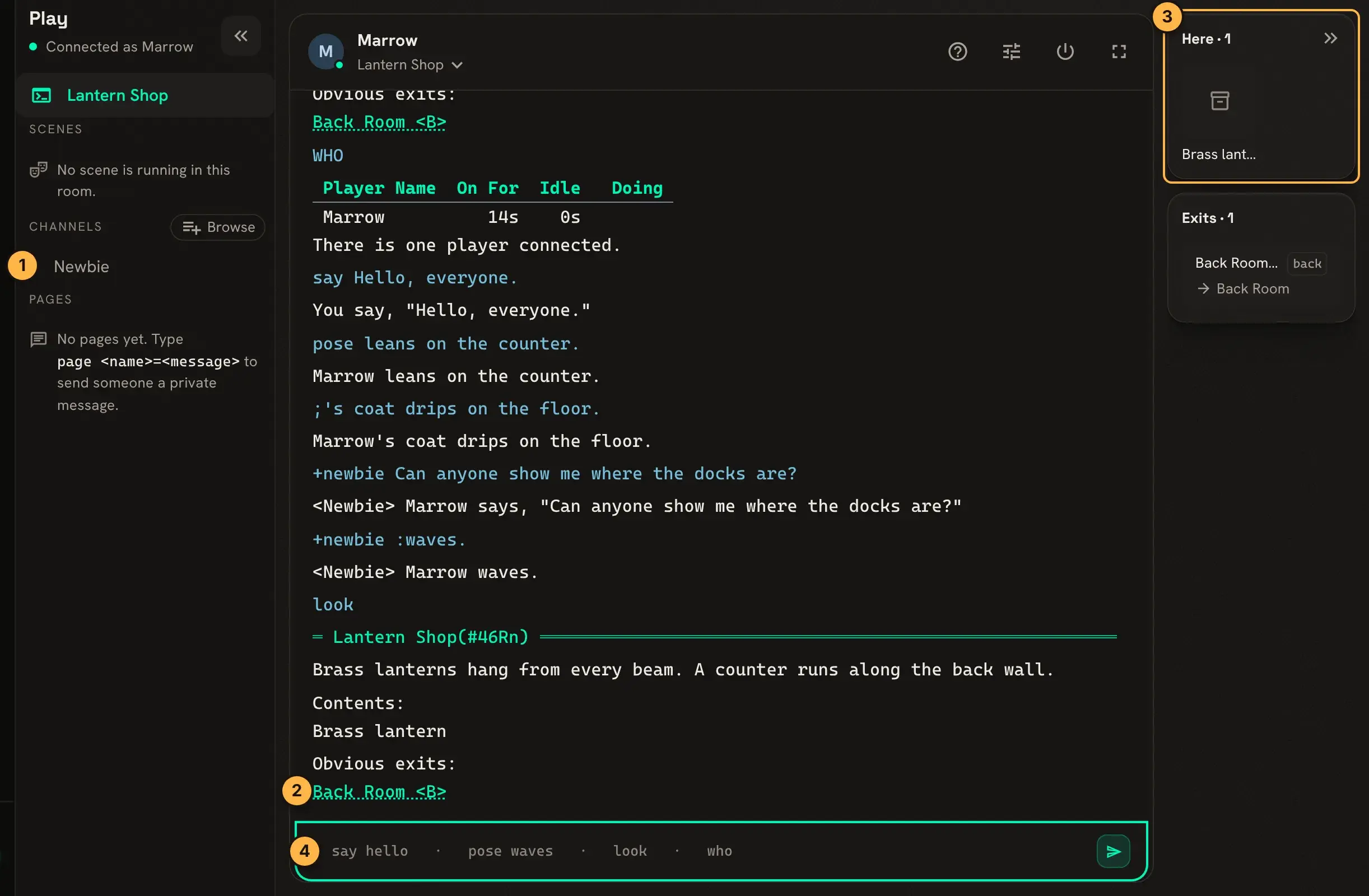
- The channels you have joined, and below them your recent pages.
- Exits in the output are links: click one to walk through it.
- Here lists who and what is in the room, and Exits below it the ways out.
- Type commands here and press Enter.
Looking and moving
Section titled “Looking and moving”look shows the room you are in. Exits are listed at the bottom; type an exit’s name to go through
it:
> look=< Room Zero >================================================================New characters arrive here. Type look to see this room again, help for thelist of commands, and @channel/on Newbie to ask other players a question.Obvious exits:In Character and Tutorial> Tutorial=< Tutorial >=================================================================The basics, one command at a time.Obvious exits:Outlook <name> looks at a person or thing in the room. home takes you back to your home room from
anywhere.
Talking in the room
Section titled “Talking in the room”Everyone in the room hears these.
| Type | Others see |
|---|---|
say Hello. or "Hello. | Marrow says, "Hello." |
pose waves. or :waves. | Marrow waves. |
;'s coat drips. | Marrow's coat drips. |
A game with the Scene System also records poses as scene logs. See Scenes.
Paging someone
Section titled “Paging someone”page reaches one person wherever they are in the game:
> page Tamsin=Are you around?You paged Tamsin with 'Are you around?'Tamsin sees Marrow pages: Are you around?. Leave the name out to page the last person you paged:
page Just saying hello. A : before the message makes it a pose: page Tamsin=:waves. shows
Tamsin From afar, Marrow waves.
WHO lists who is connected.
Channels
Section titled “Channels”Channels are chat lines that anyone who joins can hear, wherever they are. @channel/list shows
the ones you can join, and @channel/on joins one:
> @channel/on NewbieCHAT: You join channel <Newbie>.> +newbie Can anyone show me where the docks are?<Newbie> Marrow says, "Can anyone show me where the docks are?"+<channel> <message> talks on a channel you have joined, and +<channel> :<pose> poses there.
@channel/recall Newbie shows the channel’s last lines, @channel/who Newbie who is listening,
and @channel/off Newbie leaves it.
@mail holds messages for you while you are away:
> @mail/send Tamsin=Dock rota/You have the morning watch.MAIL: You sent your message to Tamsin.The part before / is the subject. Tamsin’s inbox then lists it:
> @mail=< Mail, folder 0 (INBOX) >===================================================# Flags From Subject Sent------------------------------------------------------------------------------1 N Marrow Dock rota Fri Nov 13 09:03==============================================================================1 message, 1 unread.Flags: N new, U urgent, F forwarded, C cleared, + tagged.==============================================================================@mail 1 reads message 1. @mail/clear 1 marks it for deletion, and @mail/purge removes what
you cleared. The website’s Mail page shows the same
inbox.
Describing yourself
Section titled “Describing yourself”@desc me= sets what others see when they look at you:
> @desc me=A tall sailor in an oilskin coat.Marrow/DESCRIBE - Set.Getting help
Section titled “Getting help”There are two help commands:
helpexplains the server’s own commands, the same on every SharpMUSH game.help getting startedis a good first read.+helpexplains what this game has installed and what its staff wrote: its scenes, its character sheet, its rules.
The website shows both under Help, and the help reference on this site has the server’s half.
QUIT disconnects.
Next steps
Section titled “Next steps”- Scenes for roleplay logs and scheduling.
- Letting Your Players Build to build rooms of your own.
- Screen Readers to play with one.