
Writing the Wiki
Every SharpMUSH game has a wiki for its longer writing: the setting, its people and places, the
house rules. Pages are written in Markdown, in the portal’s editor or with @wiki in the game.
Both work on the same pages, so a page started in one can be finished in the other.
The examples follow Marrow, an approved character, writing a page about the Harbour Watch.
Who can write
Section titled “Who can write”A new game lets approved characters create and edit pages, and staff through wiki.admin. A
character without them can read but not write:
> @wiki/append the_harbour_watch=More.WIKI: You can't edit 'The Harbour Watch': needs wiki.edit.Approving a character gives them wiki.create and
wiki.edit. Deleting a page needs wiki.delete, which only staff hold:
> @wiki/delete the_harbour_watchWIKI: You can't delete 'The Harbour Watch': needs wiki.delete.Writing a page in the portal
Section titled “Writing a page in the portal”Open Wiki and choose New page. The editor shows the Markdown on the left and the page as it will look on the right:
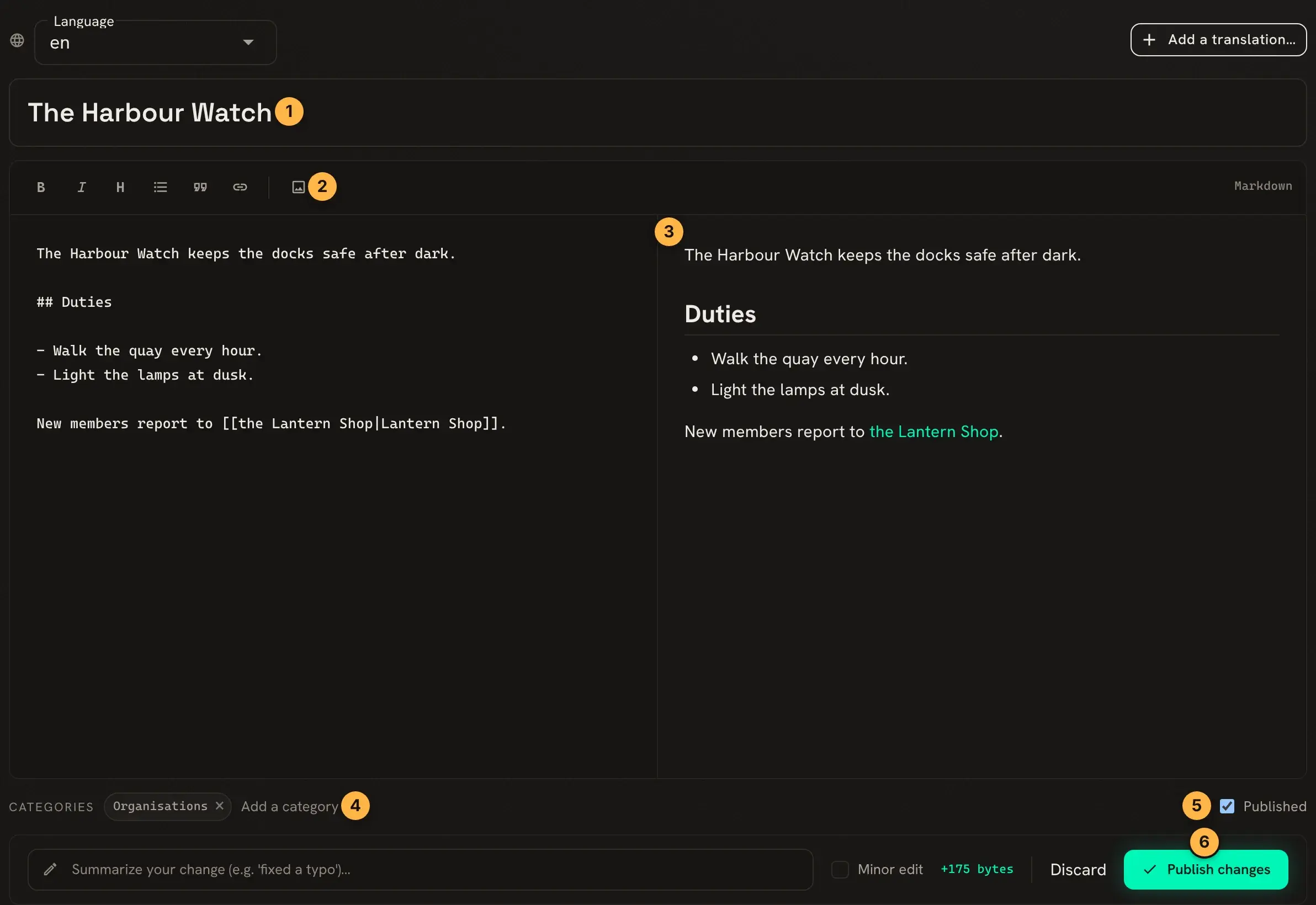
- The page’s title.
- The toolbar adds bold, italics, headings, lists, quotes, links and pictures.
- The preview updates as you type.
- Type a category and press Enter to file the page in it.
- Published is ticked for a page everyone can read. Staff can untick it to make the page a draft.
- Publish changes saves the page.
The Summarize your change box at the bottom takes a short note of what you changed, such as
fixed a typo. History shows it beside the revision.
The saved page:
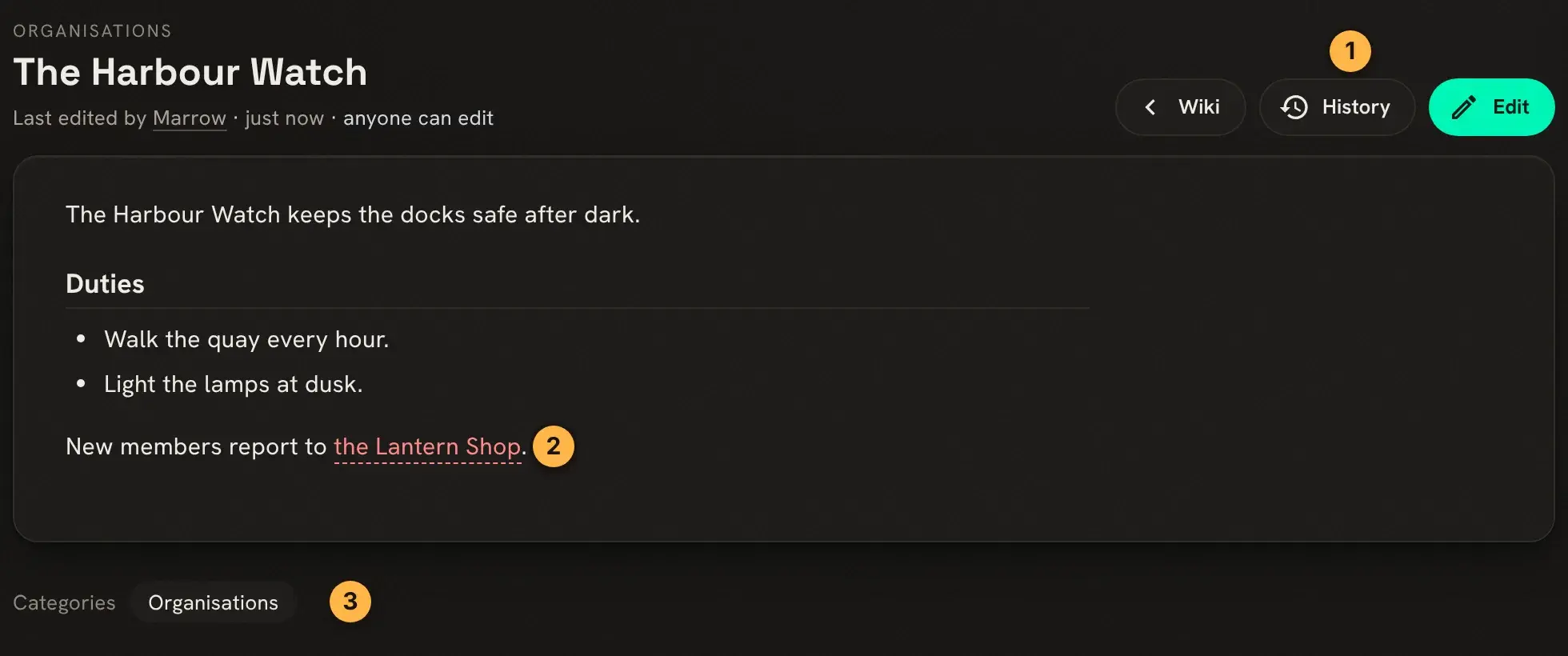
- History lists every revision. Edit opens the editor again.
- A link to a page that does not exist yet shows in red.
- The page’s categories. Each one is a page listing its members.
Linking pages
Section titled “Linking pages”[[Page Name]] links to another page, showing its title. To show different words, put them first:
New members report to [[the Lantern Shop|Lantern Shop]].shows “the Lantern Shop” and links to the page Lantern Shop. A link can point into another
namespace, such as [[Help:Markdown Guide]].
Writing in the game
Section titled “Writing in the game”@wiki/create starts a page and @wiki/append adds a paragraph to the end of one:
> @wiki/append/noeval the_harbour_watch=Ask [[Marrow]] for the night rota.WIKI: Appended to 'The Harbour Watch' (now rev 2).@wiki evaluates what you type as softcode, so [[Marrow]] would lose its brackets. /noeval
keeps the text as typed. %r puts in a line break when you do want evaluation:
@wiki/create Docks=The docks.%r%r## Berths.
@wiki/md shows a page’s Markdown, and @wiki/edit/noeval replaces the whole text with what you
paste back. @wiki <page> reads the page.
@wiki/category sets a page’s categories:
> @wiki/category the_harbour_watch=Organisations, PlacesWIKI: 'The Harbour Watch' categories: Organisations, Places.Undoing an edit
Section titled “Undoing an edit”Every save is a revision. @wiki/history lists them:
> @wiki/history the_harbour_watch+==============< Revision history for The Harbour Watch [main] >=============+| Rev Edited By Summary || -------------------------------------------------------------------------- || r2 2026-11-13 09:53 Marrow appended in-game via @wiki/append || r1 2026-11-13 09:52 Marrow |+============================================================================+@wiki/rollback puts an earlier revision back as a new one, so the rollback can be undone too:
> @wiki/rollback the_harbour_watch=1WIKI: Restored 'The Harbour Watch' to r1 (now rev 3).In the portal, History does the same. Pick an old and a new revision and Compare selected shows what changed. The restore button beside a revision puts it back.
Protecting a page
Section titled “Protecting a page”Staff with wiki.admin can stop a page being changed by anyone without it:
> @wiki/protect the_harbour_watchWIKI: 'The Harbour Watch' is now protected (editing and deleting need wiki.admin).Marrow, trying to add to it, gets
WIKI: You can't edit 'The Harbour Watch': the page requires wiki.admin.
@wiki/unprotect lifts it. A whole namespace or category can require a permission in the same way:
see help wiki requirements.
Next steps
Section titled “Next steps”- Reading the Wiki In-Game for
+wiki, which reads pages laid out for a MU* client. - Wiki Facts to give pages facts, such as a spell’s level.
help wiki,help wiki editingandhelp wiki categoriesin the game.